Create customer records
Add a company or individual with a primary name, secondary Arabic name and customer code. Record the contact person, email, phone, VAT and CR numbers, with region, buyer ID and notes available for additional details.

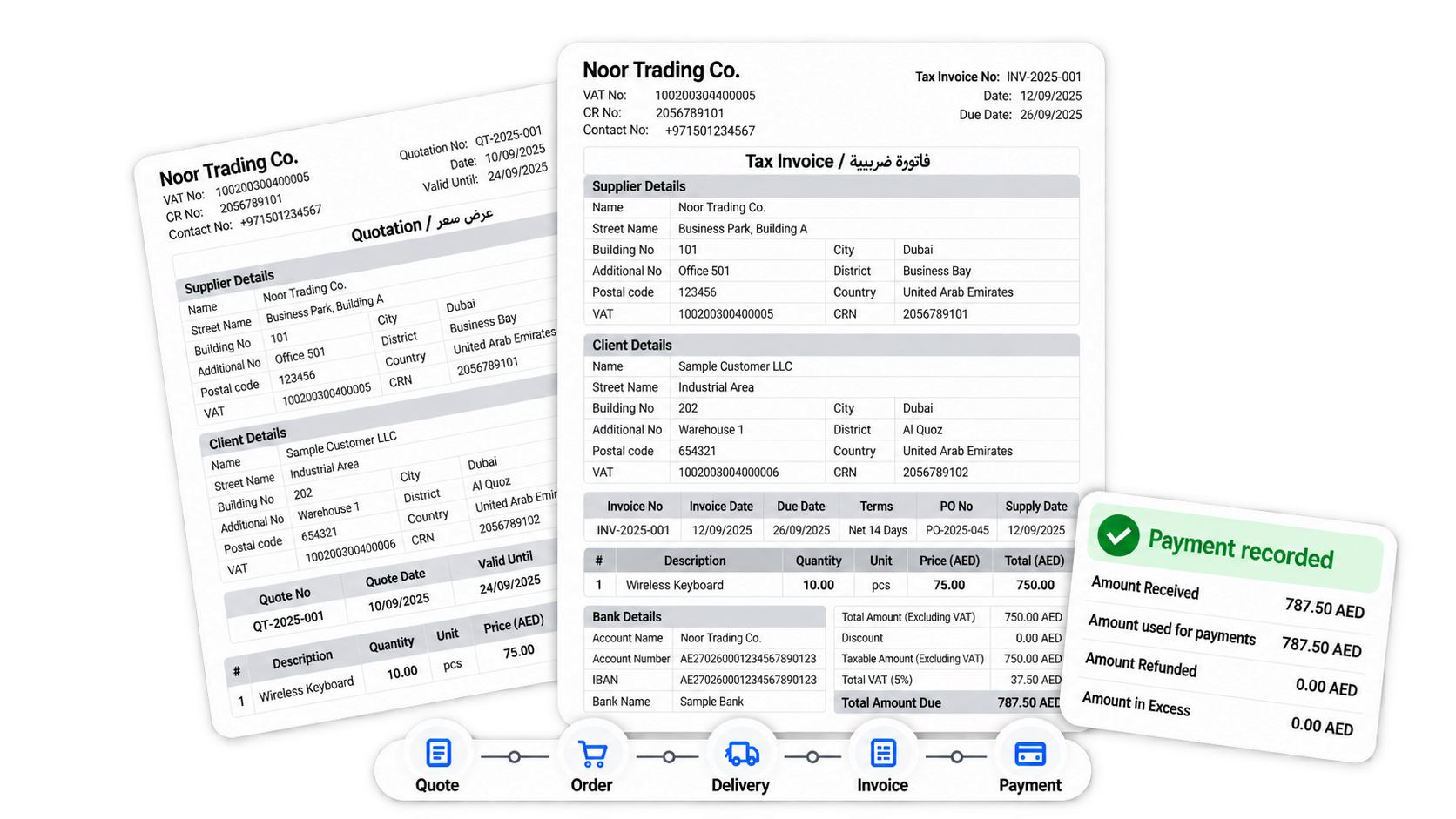
Keep customer records, quotes, orders, delivery notes, invoices and payments together in Tranz. Organize your paperwork and follow each transaction in one workspace.
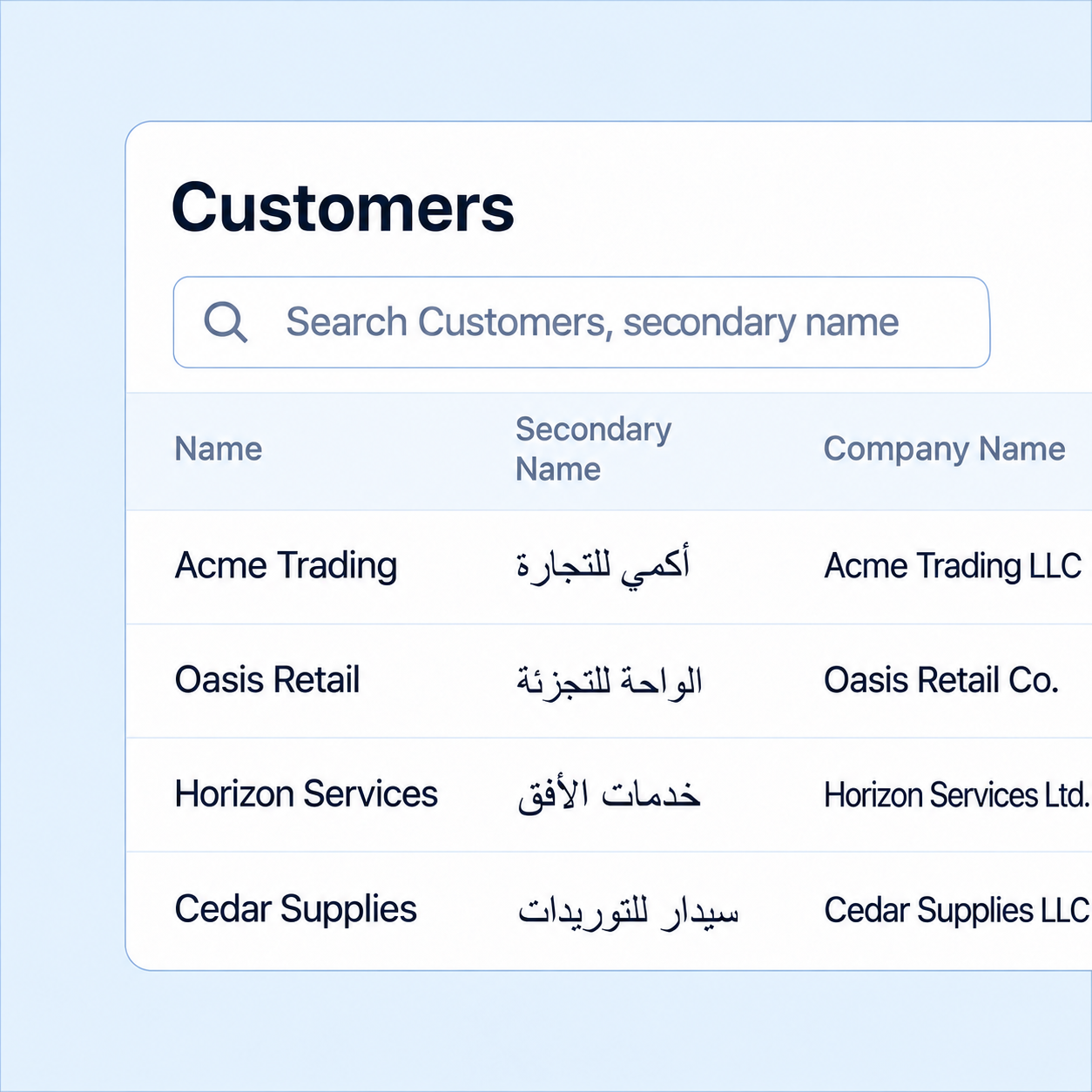
Add a company or individual with a primary name, secondary Arabic name and customer code. Record the contact person, email, phone, VAT and CR numbers, with region, buyer ID and notes available for additional details.
Keep billing and shipping addresses in the customer’s record. Store the address used for billing alongside the destination for deliveries, so your team can find the appropriate details when preparing customer paperwork.
Enter the opening balance, credit period in days and credit limit for each customer. Review the closing balance column in the customer list alongside contact and tax details when checking customer accounts.
Search by name, secondary name, code or company name to find the right customer. Edit records when details change, and use the import and export options to bring customer data into Tranz or take a copy out.
From the first offer to the next step of your sale. Keep every quotation together in TranzERP.
Create a customer quotation. Adjust an offer or clone a similar one, then prepare a printed copy or PDF.
Find quotations and drafts quickly. Follow their status as the sale moves forward.
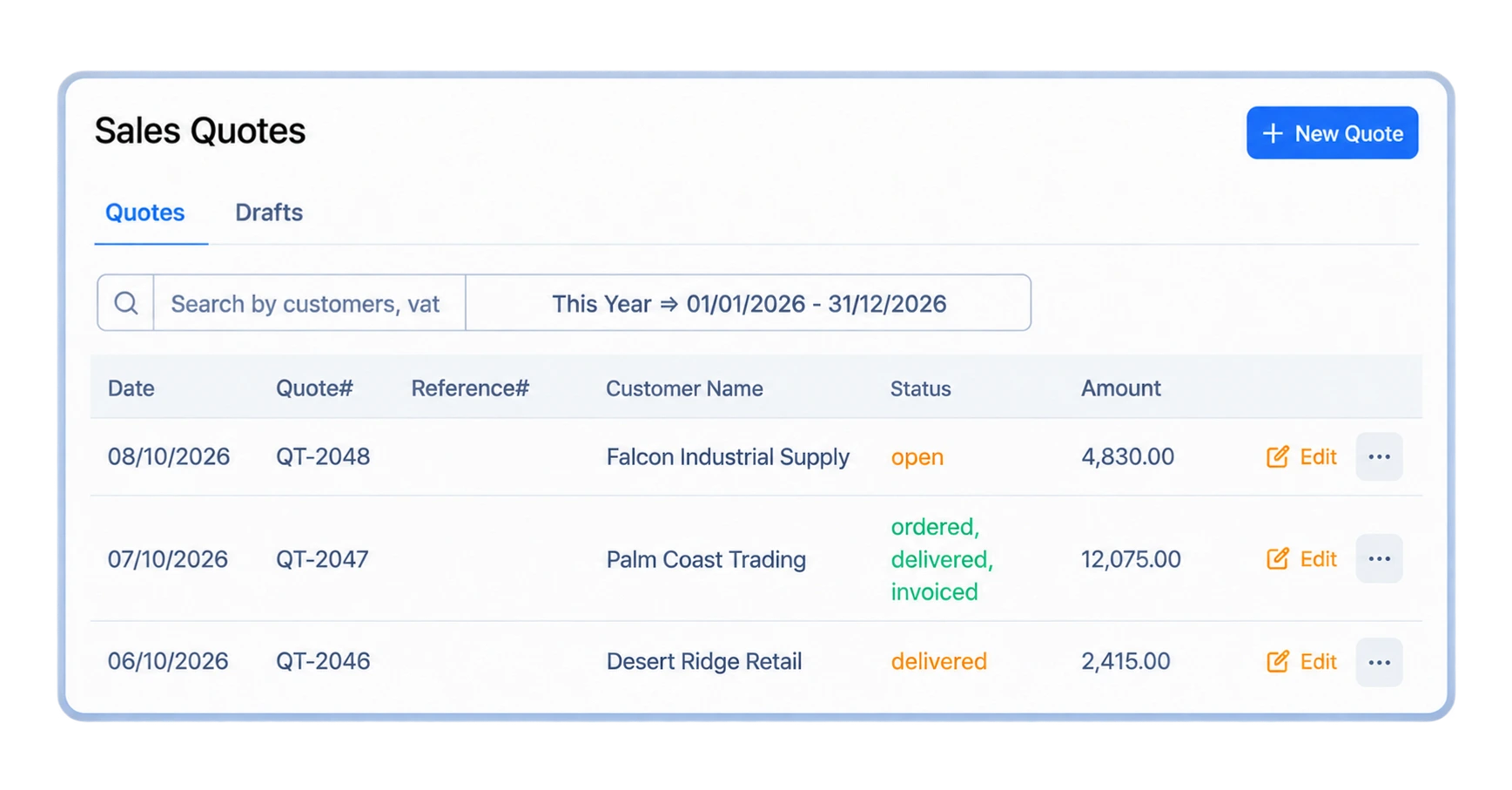
Review customer names, quotation amounts and statuses in one list. Search or filter by date to find the offer you need.
Create a sales order directly or begin from a quotation. Record the customer, items, prices and delivery date, then prepare the paperwork your sale needs—from a printed order or proforma invoice to a delivery note or invoice.
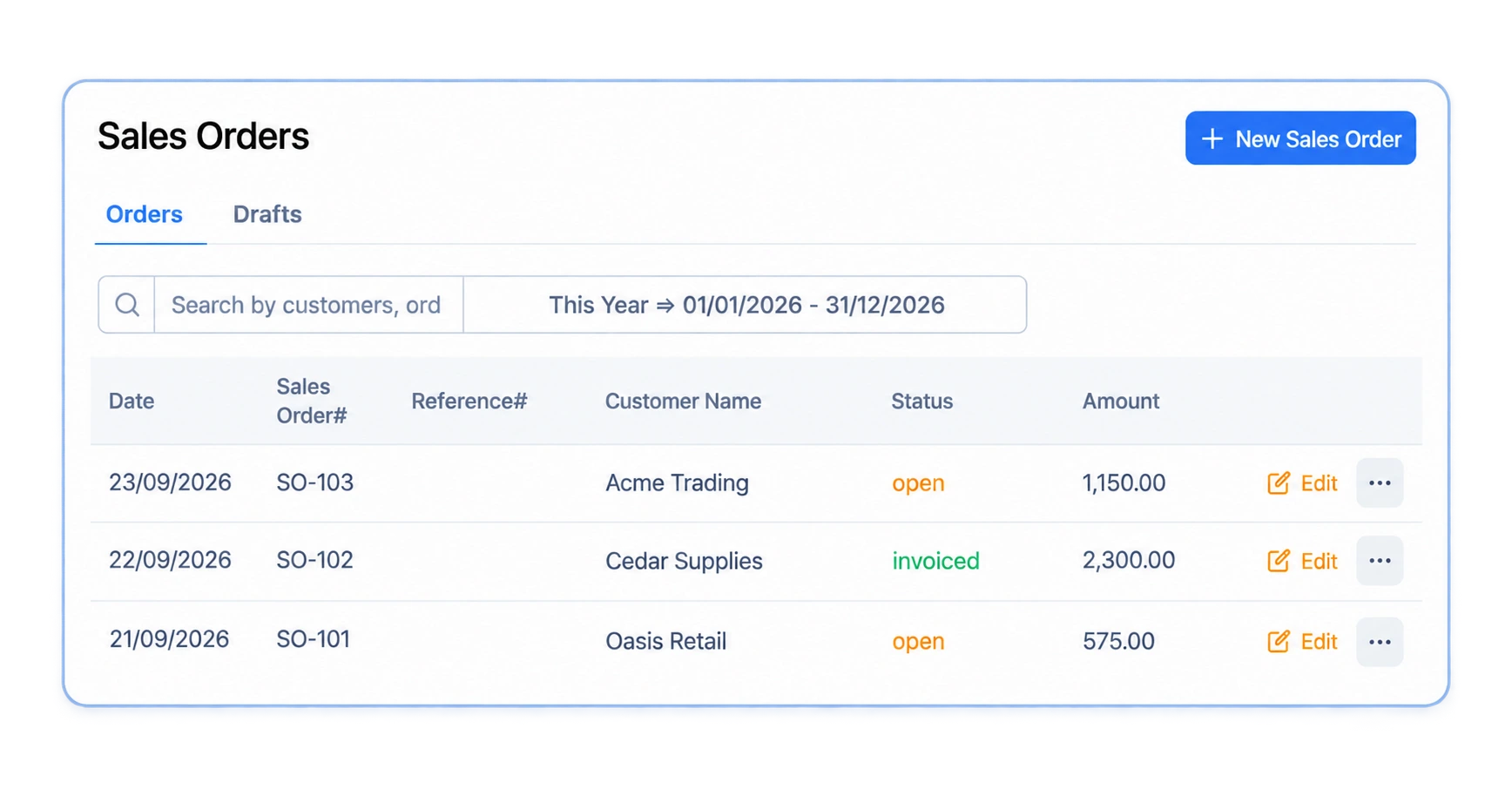
Find the customer by name, phone or code, then enter the sales order number, order date, delivery date and reference. Select or add a salesperson to record who is handling the purchase. You can also begin from a quotation using Convert to Order.
Add item rows with quantities, prices and discounts. Choose the tax and discount settings, then review each line’s net amount, tax and total alongside the overall discount, taxable amount, total tax and final order amount.
Use Save As Draft while you are preparing an order, and find unfinished records in the Drafts view. When the details are ready, choose Save or Save and Print to save the order and prepare a printed copy.
Add notes and terms and conditions to explain the details of the purchase. Use the Select Notes and Select Terms options to choose available entries, or enter the wording needed for the order.
Use Edit when an order needs updating. For a similar purchase, choose Clone to use an existing order as a starting point, then review the customer, dates, items and amounts before saving the new record.
Open the order’s More menu to print a paper copy or generate a PDF for sharing or keeping on file. Save and Print is also available while creating an order, keeping the document step close to the work you are doing.
Choose Print Proforma Invoice from the order’s menu when you need a preliminary invoice for the customer to review. Present the proposed purchase before issuing the final invoice, directly from the sales order record.
Search by customer, order number or reference, and filter by date. Review order dates, references, customer names and amounts in the Orders view, with open and invoiced statuses showing which records have reached billing.
Choose the document your sale needs from the order’s More menu, whether you are preparing a delivery or ready to bill the customer.
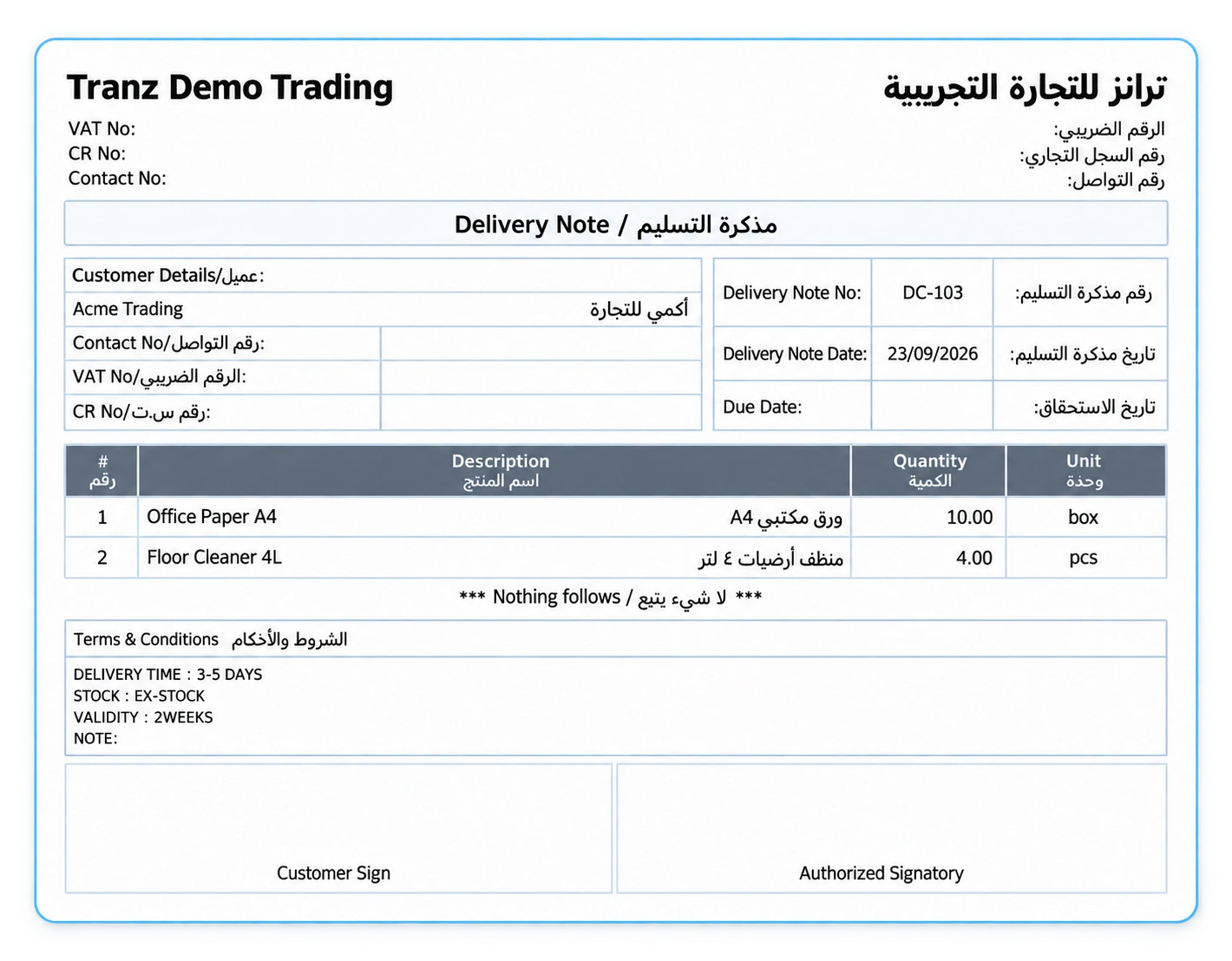
Choose Convert to Delivery Note when the order is ready for delivery paperwork. Start the delivery document from the sales order and prepare the details your team and customer need for the handover.
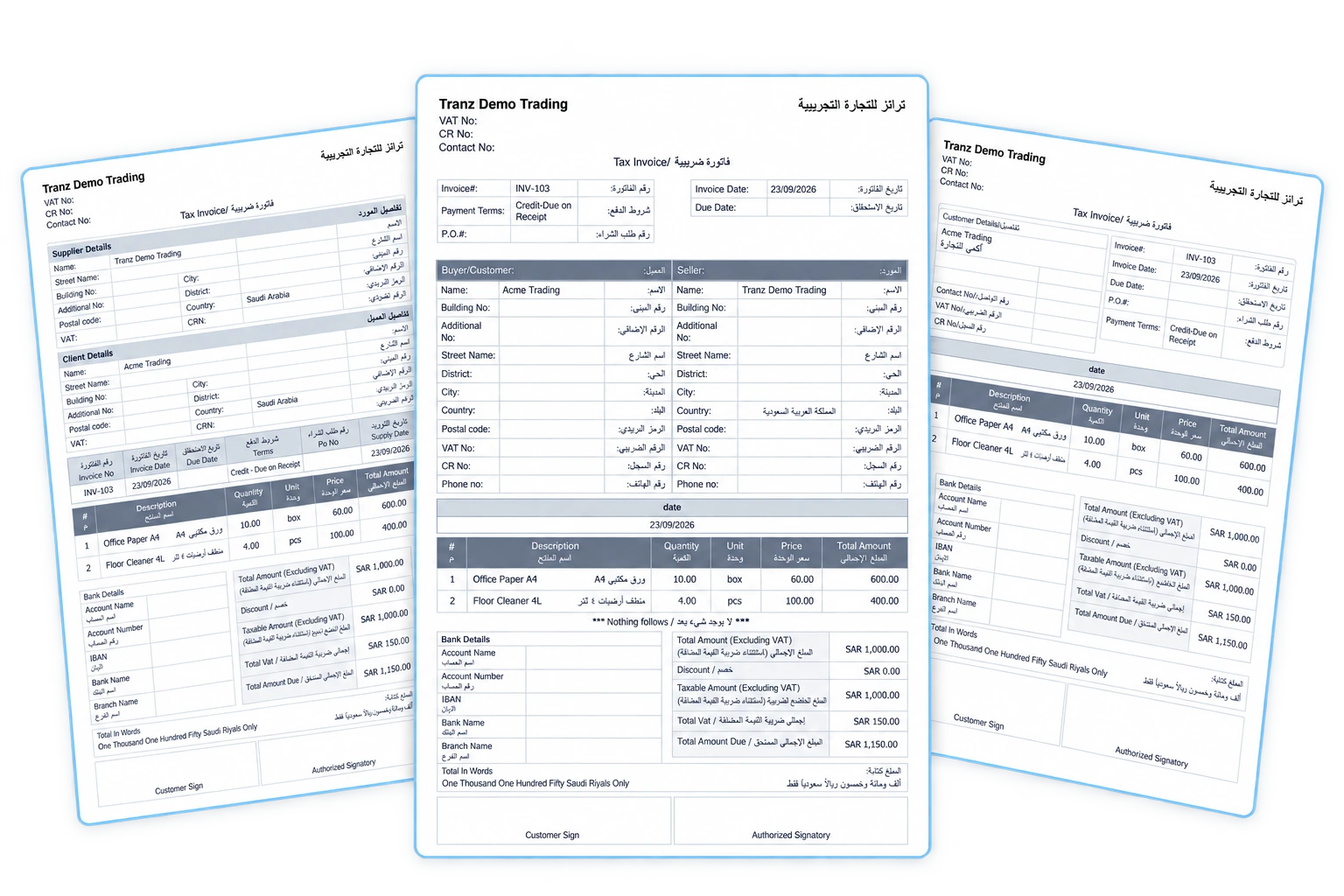
Choose Convert to Invoice when the purchase is ready for billing. Begin the invoice from the sales order, then review the billing details and amounts before preparing the customer’s final bill.
When the goods are ready to go, make the paperwork just as ready. Prepare a clear delivery note, give your customer a copy, and keep a record your team can return to when it is time to answer a question or prepare the invoice.
Have a quote or sales order ready? Convert it to a delivery note when the goods are ready for handover, or create a new note directly. Choose the customer and record the date, due date, reference and salesperson so the delivery has a clear identity from the start.
Before the goods leave, give the person preparing them a clear list to check. Add the items and quantities, review prices, discounts and tax, and include any notes or terms the customer needs to know. The details stay with the delivery record instead of being left to a separate conversation.
Some deliveries need a little more preparation. Others are ready to leave. Keep the paperwork ready for either moment.
Save the delivery note as a draft while you confirm the items or finish the instructions. Return to it in Drafts when you are ready to continue. If a saved note needs a correction, use Edit to update the record before preparing the next copy.
Ready for the handover? Save and Print the note, or choose Print or PDF from its menu. The available Arabic and English layout presents the delivery details, notes and terms with signature spaces, giving your team and customer a clear document to use when the goods arrive.
Find the record by customer, VAT number, delivery note number or reference, and narrow the list by date. Review the customer, amount and delivered status alongside the note’s reference, so you have the right paperwork in front of you when answering.
Use Clone to start from an existing delivery note when the next delivery looks familiar. Review the customer, dates, items and quantities for the new handover, then save a separate record with the details that fit this delivery.
When it is time to bill the customer, choose Convert to Invoice from the delivery note’s menu. Begin the invoice from that delivery record and review the billing details before issuing it, taking the sale from handover to its next step.
A sale is ready to bill, a customer needs a copy, or an unpaid amount needs checking. Prepare clear invoices and keep the details close, so your team can handle the next question with the right record in front of them.
Create an invoice directly, or begin from a quote, sales order or delivery note. The New Invoice menu also offers New Quick Invoice. Keep the customer, invoice and supply dates, due date, purchase order number and reference together, with an invoice type, salesperson and available project or custom fields for the details your business needs.
Give the customer a breakdown they can follow. Add the items, quantities, prices and discounts, choose the tax and discount settings, and review the taxable amount, total tax and final amount. When a question comes in, your team can explain the bill from the details already recorded.
Waiting for a purchase order reference or the final wording? Save the invoice as a draft and return to it through Drafts when the details are ready. Add notes and terms using available saved entries or your own wording, then choose Save or Save and Print.
Print the invoice or generate a PDF from its menu when the customer needs a copy. Choose an available standard, bilingual or thermal layout to suit the way you work, with Arabic and English options that keep the bill understandable for the people reading it.
Make the next step clear with a due date, notes and payment terms. Use an appropriate invoice layout to present bank details alongside the invoice reference and amount, giving the customer the information they need when arranging payment.
Issuing the invoice is one part of the day. Finding an unpaid bill, preparing a repeat sale or printing delivery paperwork should be straightforward too.
Review paid and overdue statuses, due dates and balances due in the invoice list, with payment retention shown alongside them. Search by customer, VAT number, invoice number, purchase order or reference, and filter by date to find the bills that need your attention.
For a similar sale, use Clone to start from an existing invoice, then review the customer, dates, items and amounts before saving the new record. Edit is also available when an invoice record needs updating, keeping routine changes close to the bill you are working with.
The invoice is ready, and your team needs a delivery copy to go with the goods. Choose Print Delivery Note from the invoice’s menu to prepare that document while you have the sale in front of you.
A billing adjustment or submission check can bring you back to an invoice. Keep the relevant actions and status information within reach.
When the sale needs a credit adjustment, choose Create Credit Note from the invoice’s menu. Start the credit note from the bill it relates to and review the adjustment details, giving your team a clear starting point for handling the change.
Use Submit to Fatoora from the invoice’s menu and review the ZATCA status in the list. Approved, pending and rejected statuses appear with response details, including warnings where shown. Check submission progress separately from payment status, and use Download XML when you need the invoice’s XML file.
The customer has paid. Keep a clear record of what arrived, which invoices it covers and any amount left as an advance. When a question comes up later, the details are easy to find.
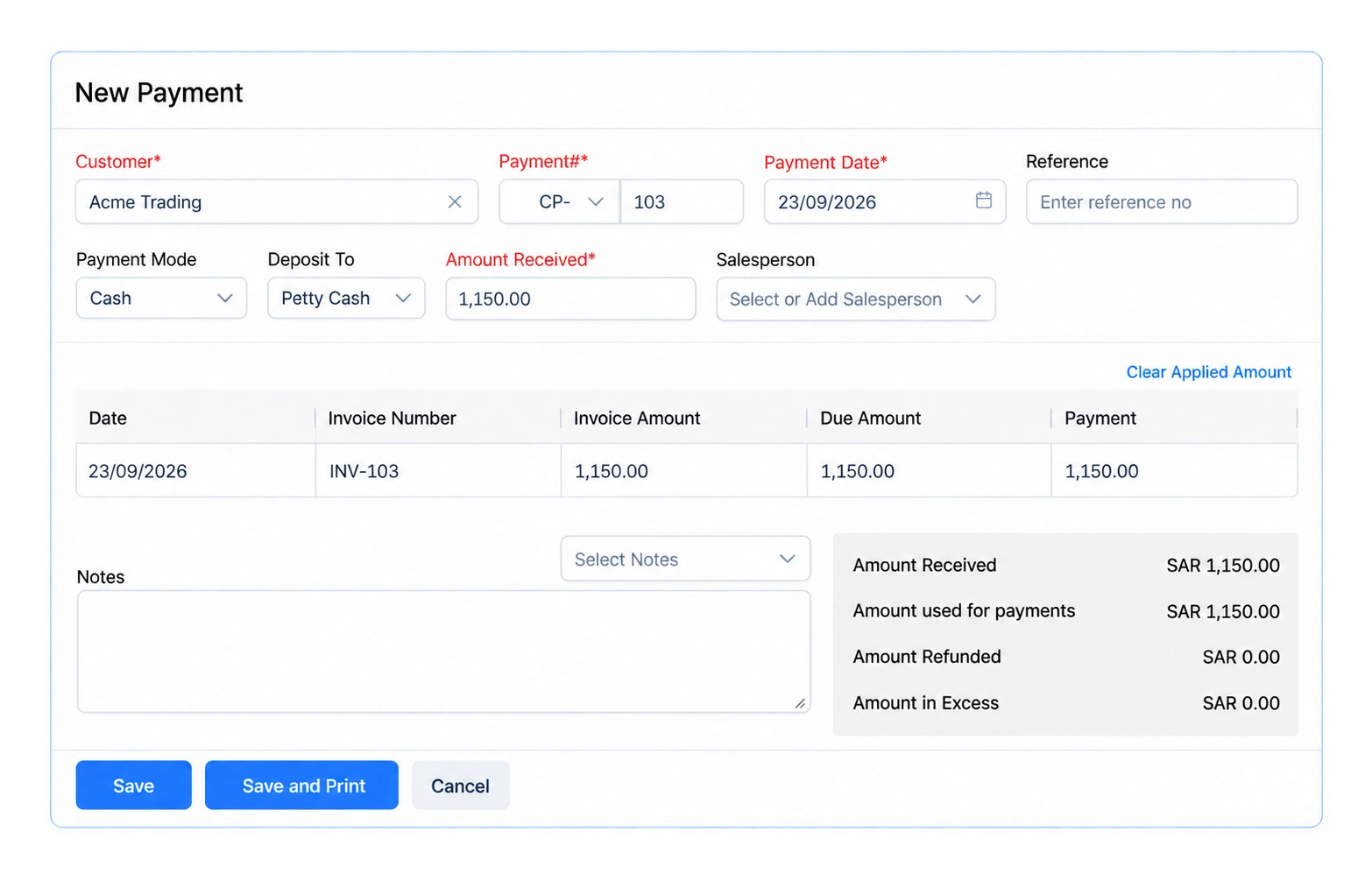
A bank transfer lands, a cheque arrives, or a customer pays by cash or card. Record the customer, date, amount and payment method, then choose the deposit account. Add a reference or note so your team can recognize the payment later.
Has the customer paid for more than one bill? Review each invoice’s due amount and apply the payment where it belongs, keeping the allocation clear for your next account enquiry.
When a payment includes an advance, keep it visible in the payment list. Review received, applied, refunded and excess amounts together to understand how the receipt has been accounted for.
A customer asks about a payment or needs a copy. Search by customer, VAT number, payment, invoice or reference, then print the record or generate a PDF from its menu.
Explore Tranz on Web, Desktop and Mobile. Detailed availability of these sales tools on each platform is TBD.
Compare platformsEverything you need to know to manage your business smarter, all in one place.