
Invoice
Create and manage sales invoices, from choosing a customer to preparing a printed or PDF copy.
Prefer a quick walkthrough? Watch the invoice guide →Open your invoices
In the sidebar, open Sales and click Invoices. The Sales Invoices page has two tabs:
- Invoices: find saved invoices and review their payment and ZATCA statuses.
- Drafts: return to invoices you have saved as drafts.
Use the search field to find an invoice by customer, VAT number, invoice number, purchase order or reference. Adjust the date filter if the invoice is outside the displayed period.
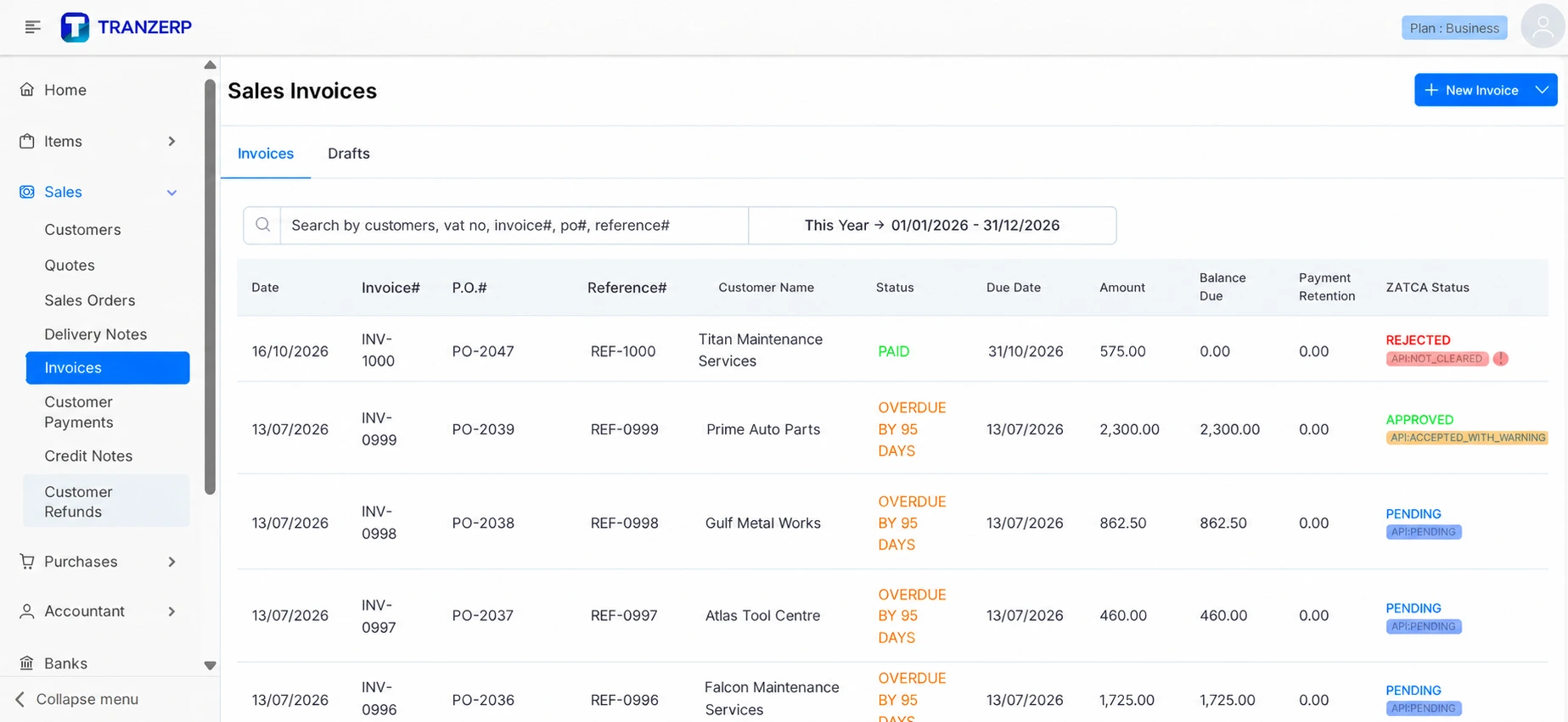
To begin a new invoice, click + New Invoice at the top right.
Customer & invoice details
Choose your customer, then review the invoice details. The example below uses Precision Workshop Supplies.
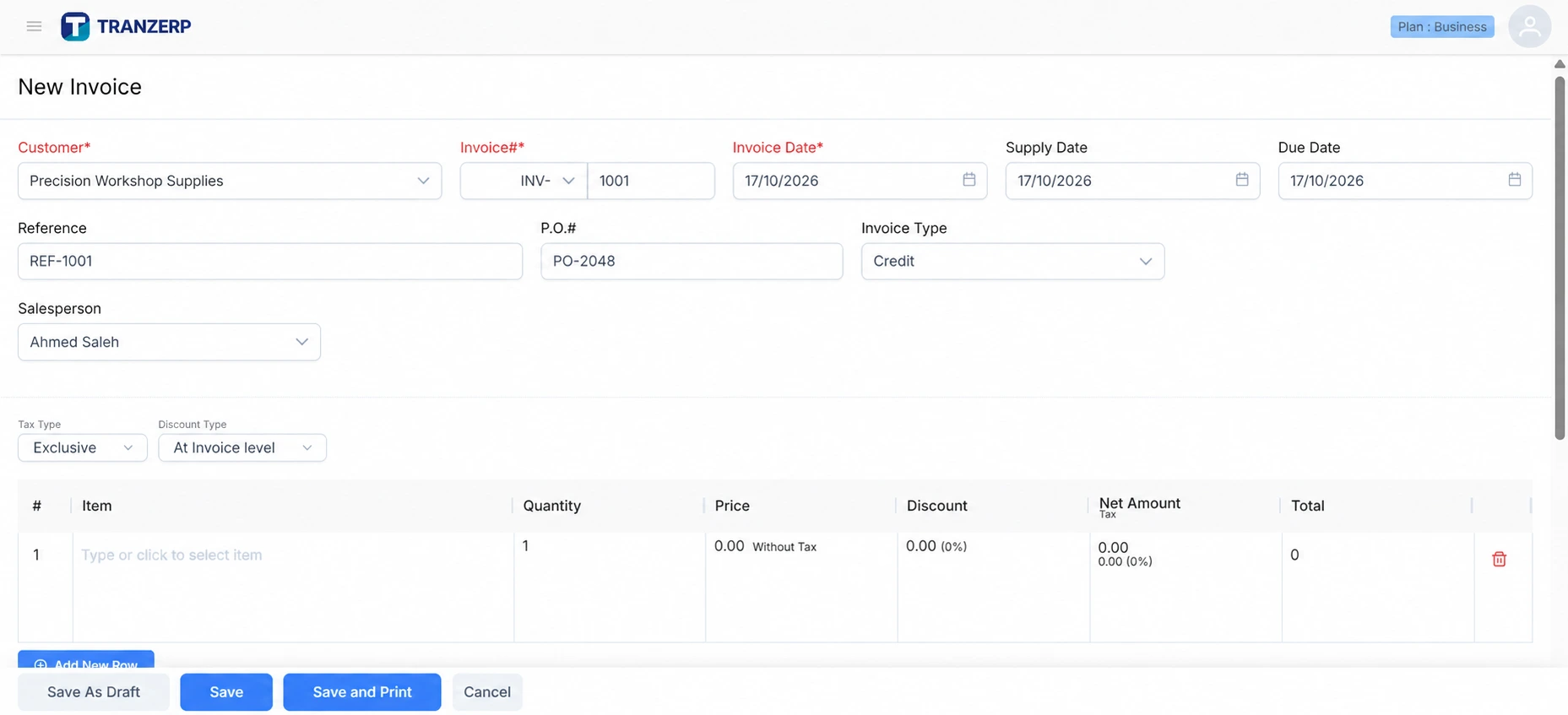
| Field | What to enter or check |
|---|---|
| Customer | Choose the customer you are billing. Search for an existing record, or click Add New Customer in the customer dropdown to create one. |
| Invoice# | Review the invoice prefix and number before saving. The example uses INV-1001. |
| Invoice Date | Check the date for this invoice before you save it. |
| Supply Date | Check or enter the date the goods or services are supplied. |
| Due Date | Review the payment due date. If the field shows the current date, change it when you have agreed a different date with the customer. |
| Reference | Enter a related transaction reference when needed. Leave this blank if it does not apply. |
| P.O.# | Enter the customer's purchase order number when provided. Leave this blank if there is no purchase order. |
| Invoice Type | Choose the invoice type for this transaction. Use Credit when the customer will pay later, and review the agreed Due Date. |
Custom fields. Your form may include extra fields configured for your business. The Salesperson field shown here is an example of a custom field.
Items, tax & totals
- Click the Item field and choose the item your customer is buying.
- Enter the Quantity and check the Price. Review the row's discount, tax and total.
- Click Add Row to include another item. Use the row's delete icon to remove an item you do not need.
Review Tax Type and Discount Type for the transaction. Check whether each price is entered with or without tax before reviewing the final amount.
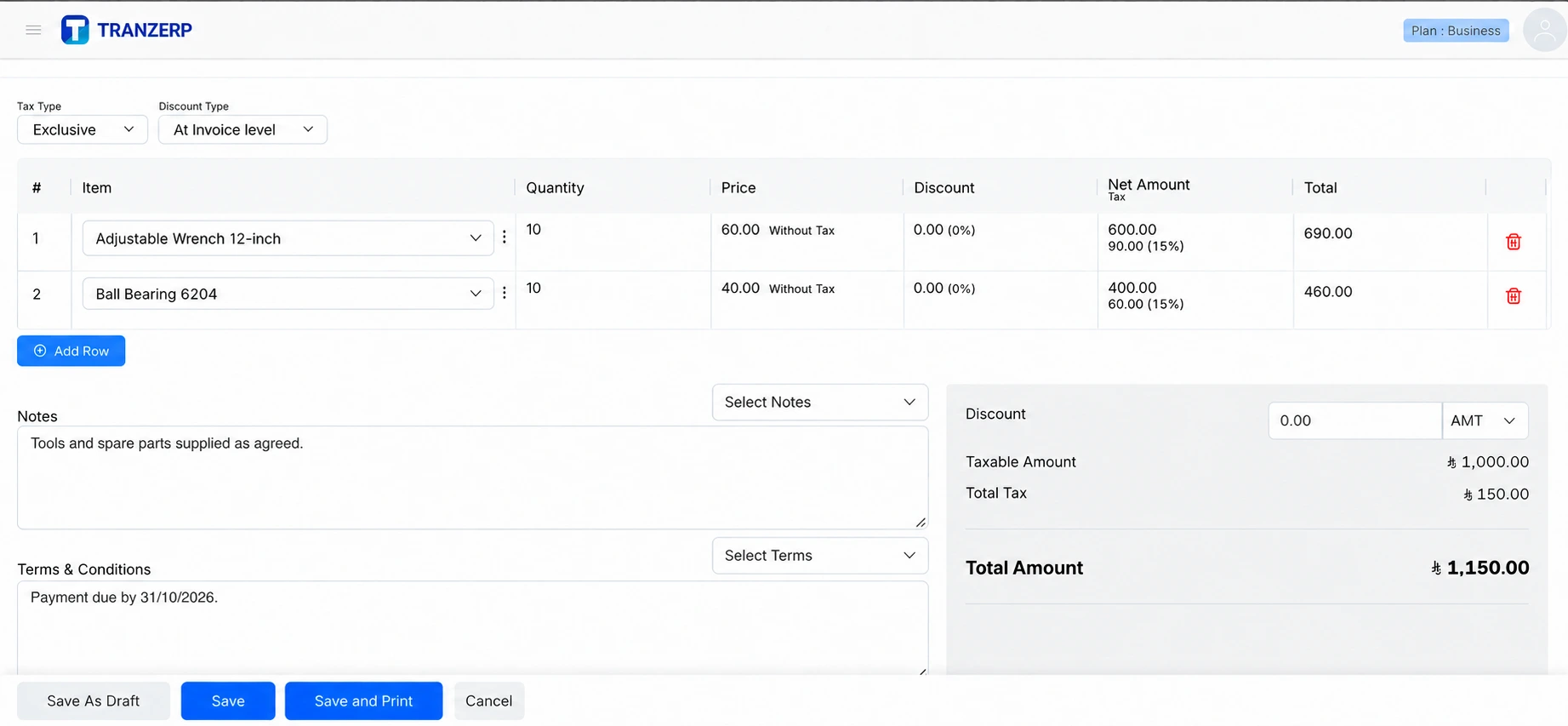
- Notes
- Add information for your customer, such as delivery details or an explanation of the items supplied.
- Terms & Conditions
- Add the payment instructions or other agreed terms that apply to this invoice.
- Totals
- Check the discount, taxable amount, total tax and final Total Amount. If an amount is unexpected, review the item quantities, prices and tax settings.
In this sample, the two item amounts are 600.00 and 400.00. The displayed tax is 150.00, giving a total of 1,150.00. Use the settings that apply to your own transaction.
Save or keep a draft
Before saving, review the customer, dates, invoice type, items and final amount. Then choose the action you need:
- Save As Draft
- Keep an unfinished invoice. Open the Drafts tab on the Sales Invoices page when you are ready to continue.
- Save
- Save the invoice. You can then find it in the Invoices tab.
- Save and Print
- Save the invoice and proceed to prepare a printed copy.
If the form asks you to complete a field, enter the missing information and review it before saving again.
Saved invoice actions
Find the invoice in the Invoices tab. Click its three-dot menu to see the available actions.
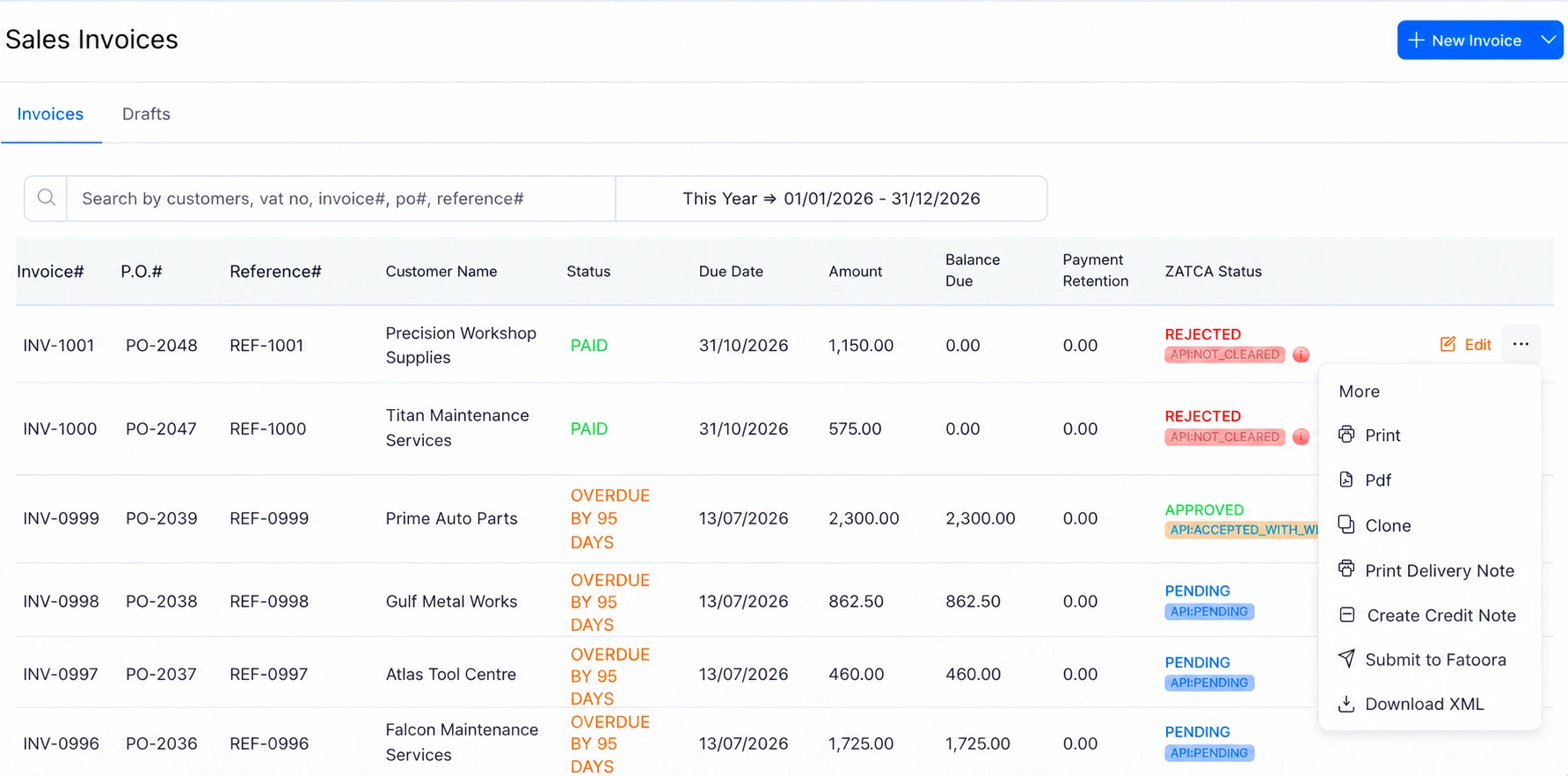
| Action | Use it to |
|---|---|
| Open the invoice for printing. | |
| Open the invoice as a PDF so you can review or download a customer copy. | |
| Clone | Use an existing invoice as the starting point for a repeat order. Review the customer, dates, items and prices before saving the new invoice. |
| Print Delivery Note | Prepare a delivery note for the invoice. |
| Create Credit Note | Open the credit note workflow for this invoice. |
| Submit to Fatoora | Access the submission action. Review the ZATCA status and response separately after submission. |
| Download XML | Download the invoice XML from the saved invoice's menu. |
Preview, print & PDF
Click Print or Pdf from the saved invoice's menu. In the preview, review the customer and business details, invoice number, dates and invoice content before preparing a customer copy.
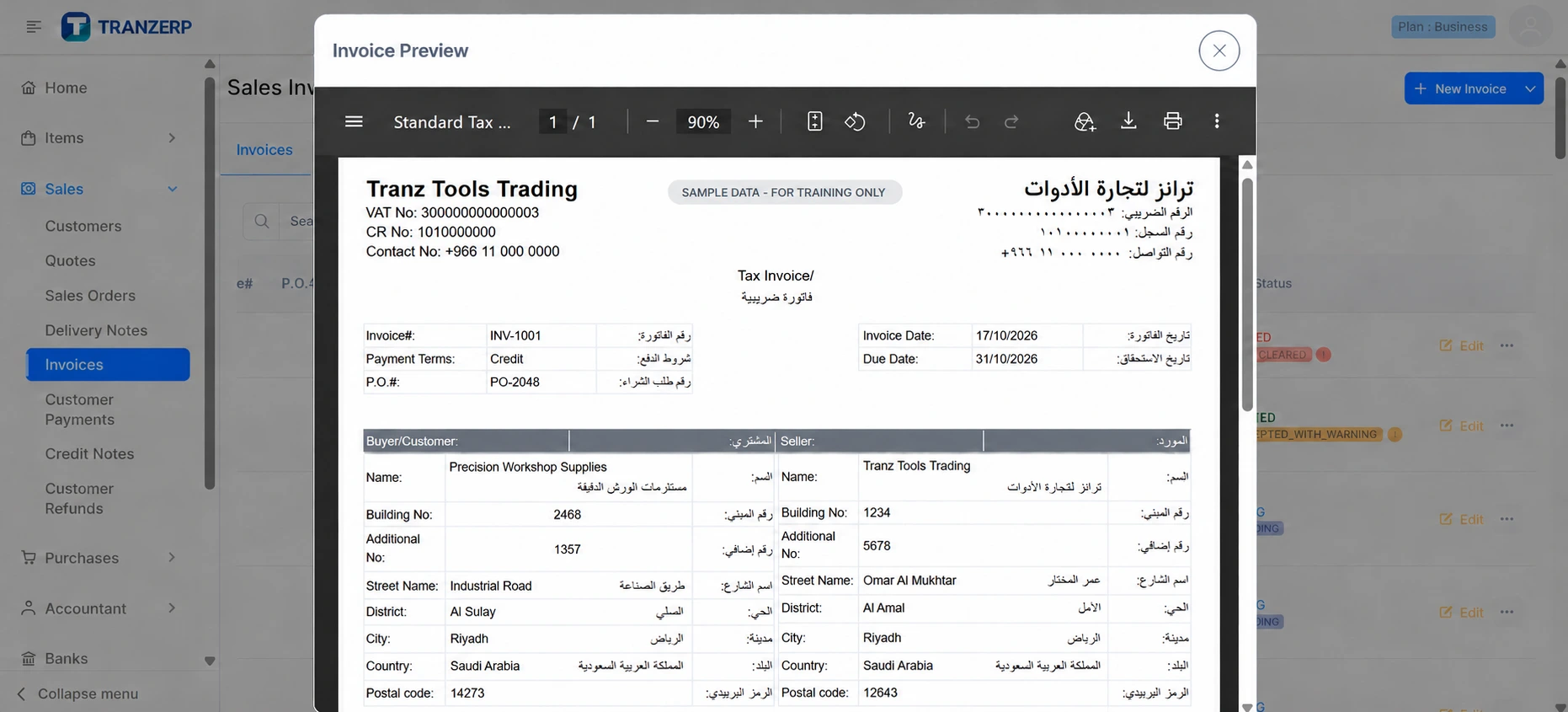
Use the preview toolbar's download control to save a PDF, or the print control to open printing options. Close the preview to return to the invoice list.
Screenshots show sample records. Dates, values and custom fields may differ in your workspace.
Troubleshooting
I cannot find a saved invoice.
Check the date filter and search by the customer, invoice number or reference. If you saved it as a draft, look in the Drafts tab.
The due date is today's date.
Review the Due Date before saving. If you have agreed a later payment date, enter that date in the field.
The invoice is saved, but its ZATCA status is pending or rejected.
Review the ZATCA Status and its response on the invoice list. Saving or printing alone does not confirm submission. Contact our team if you need help with the response.