
Categories
Use categories to group related items under a name your team can recognize and search for. For example, a Safety Equipment category can group helmets, gloves, and safety glasses.
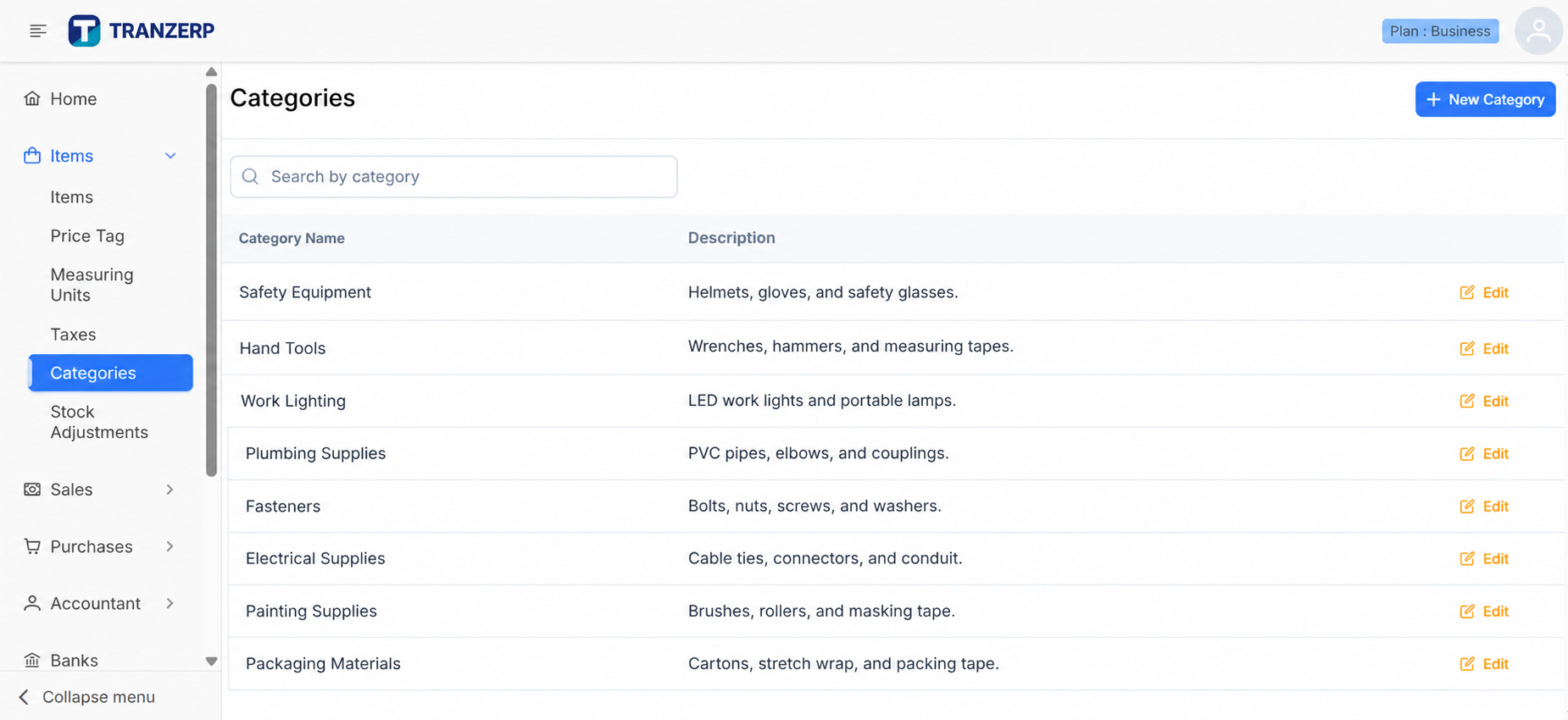
Find a category
- In TranzERP, expand Items in the sidebar and select Categories.
- Use Search by category to find a category by name. For example, search for Hand Tools.
- Check the Category Name and Description columns to identify the right record before making changes.
Create a category
Search the list before creating a category so you can reuse an existing one that covers the same group of items.
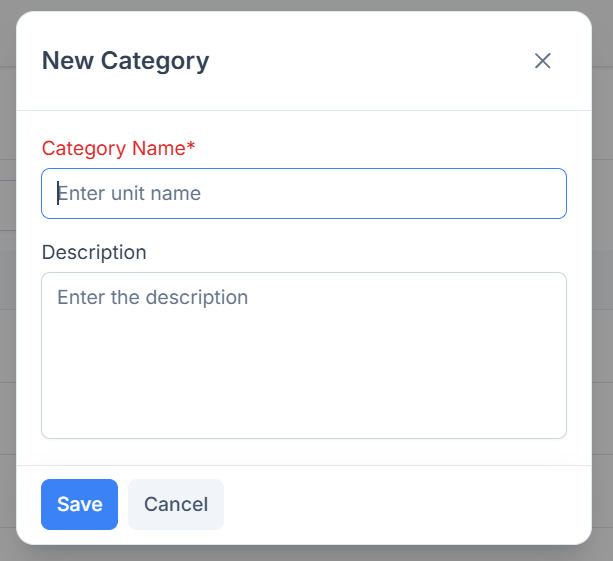
- Click New Category.
- Enter the required Category Name. For example, enter Safety Equipment.
- Optionally enter a Description that explains what belongs in the group. For example, enter “Helmets, gloves, and safety glasses.”
- Click Save, then search for the name to confirm that the category appears in the list. To close the form without saving, click Cancel.
Edit a category
- Find the category you want to update and click Edit on its row.
- Update the Category Name or Description and click Save.
- Check the updated name and description in the list. If you renamed the category, search using the new name.
Find items by category
Open Items → Items and enter the category name in the item search. This helps you find items in the same group when you do not know their individual names or codes. See Find an item in the Items guide.
Troubleshooting
The category is hard to find.
Try searching by part of the name or clear the search to see the full list.
The category cannot be saved.
Check that Category Name is filled in and review any message shown by the form.
Two categories have similar names.
Check the descriptions before editing either row. If the groups serve different purposes, use descriptions that make the distinction clear.
I changed the category name and cannot find the old name.
Search for the new name or clear the search. Review the description to identify the record you edited.
The description is blank in the list.
Click Edit and add a description that explains what belongs in the category, then save. For example, describe Safety Equipment as helmets, gloves and safety glasses.
How do I find items in a category?
Open Items → Items and enter the category name in the item search. Review the matching items and use a name or code if you need a specific product.