
Delivery Notes
Prepare a clear record of the items and quantities being handed over to your customer. Create a delivery note directly or start from a quote or sales order, add the delivery instructions and terms, then prepare a copy for the handover and later billing.
A delivery note records delivery details. It is separate from the sales invoice and the customer’s payment record. Review the actual handover, billing and payment records when checking the progress of a sale.
Find a delivery note
In the sidebar, open Sales and click Delivery Notes. The page has two tabs:
- Delivery Notes: review saved documents, including their delivery note date, number, reference, customer, status and amount.
- Drafts: return to delivery notes saved as unfinished work.
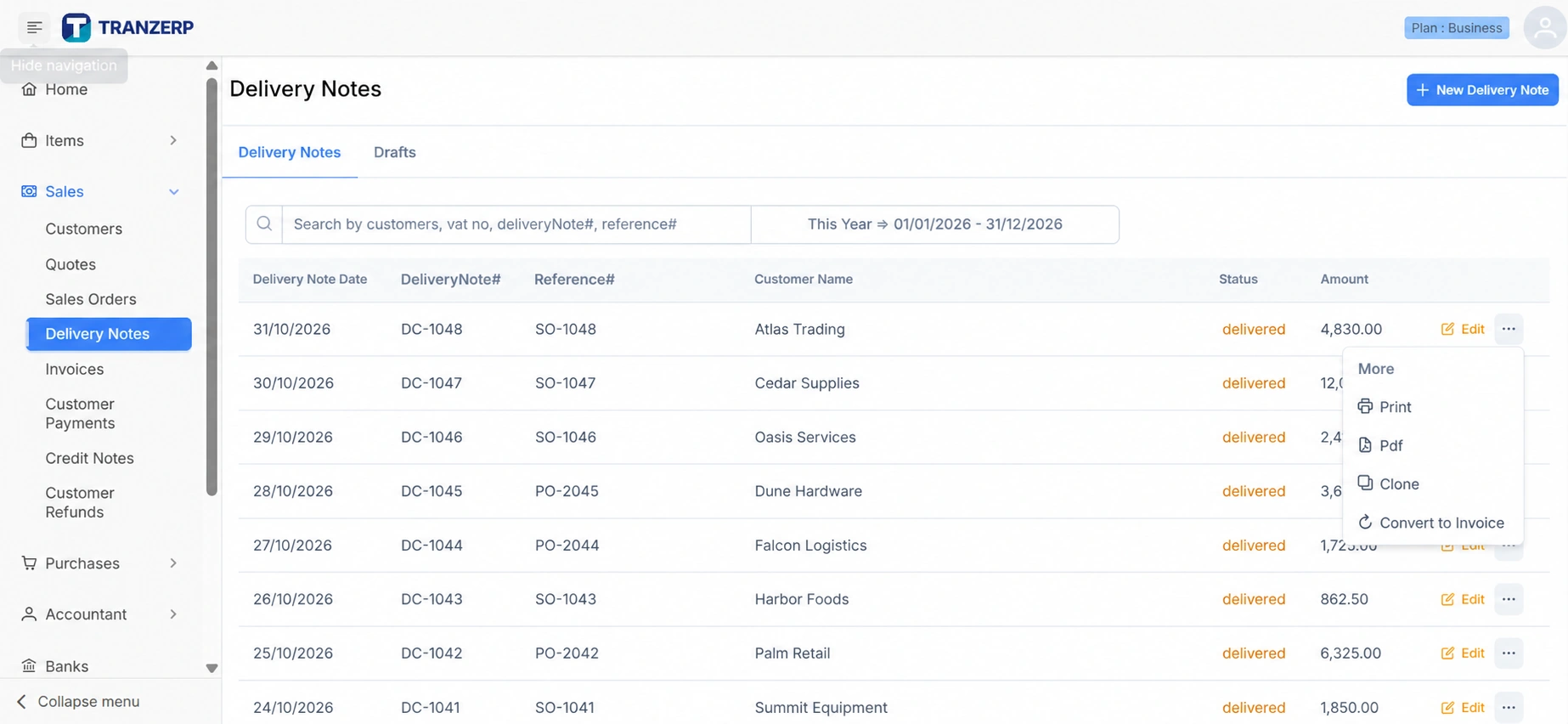
Search by customer, VAT number, delivery note number or reference. Review the date filter if the record is outside the displayed period. The screenshot shows This Year; change the period when you need a delivery note from another year or date range.
Compare the customer, delivery note number, date and amount before opening a record. Click Edit to review its details, or use the row’s three-dot button to open the More menu. Click + New Delivery Note at the top right to start a new document.
Create a delivery note
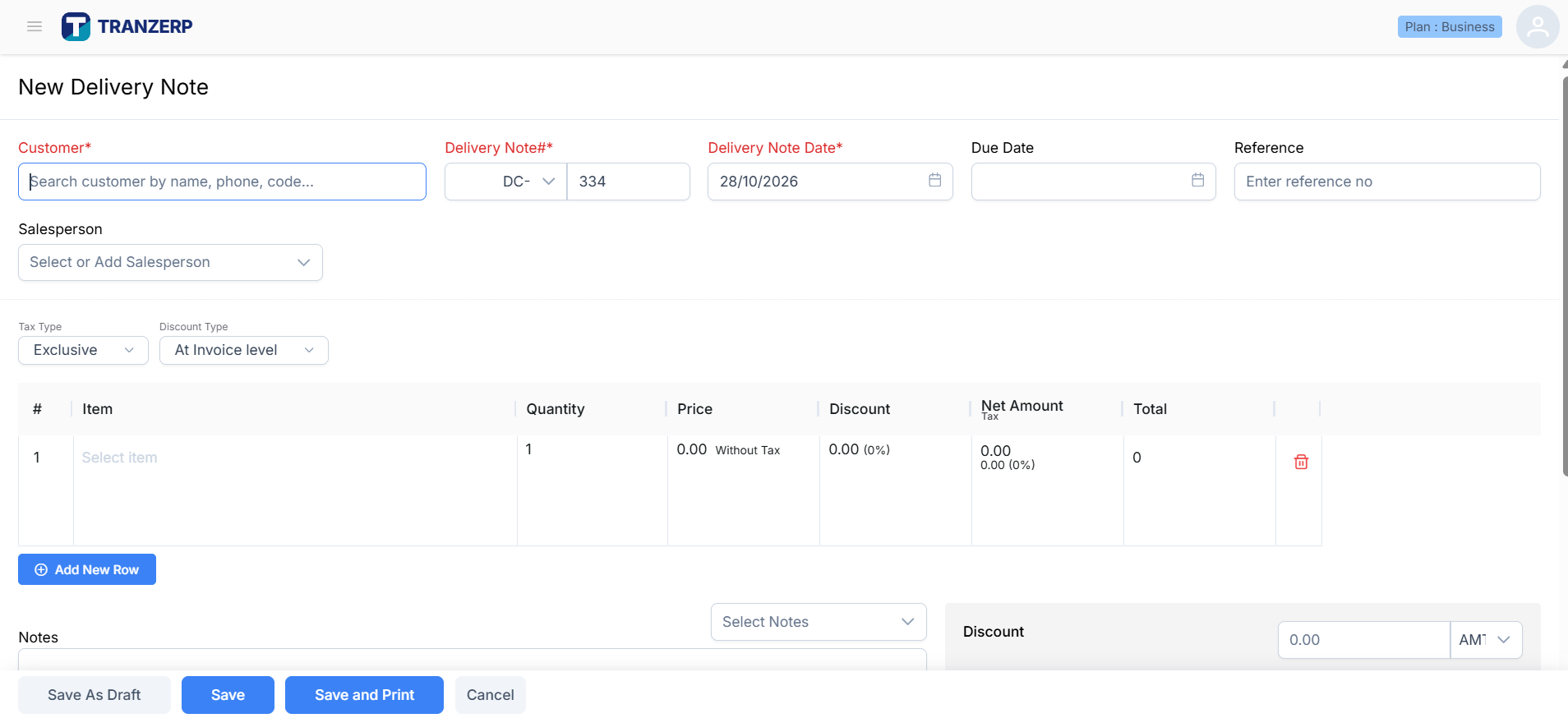
Click + New Delivery Note, choose your customer and complete the delivery details. Review fields marked with an asterisk before saving the finished document.
| Field | What to enter or check |
|---|---|
| Customer* | Search by customer name, phone or code and select the correct record. Check the details when customer names are similar. If the customer is inactive, reactivate them before creating a new transaction. |
| Delivery Note#* | Review the prefix and number used to identify this delivery note. The form shown uses DC-334. Keep this number separate from any related quotation, sales order, customer reference or invoice number. |
| Delivery Note Date* | Enter the date for the delivery document. Check it before saving, especially when preparing paperwork for a different day. Use this date when choosing a period in the Delivery Notes list. |
| Due Date | Enter the applicable due date for this record when needed and review it against the arrangements agreed with the customer. Check the invoice’s own due date separately when preparing billing. |
| Reference | Enter a related purchase order, sales order or other reference that helps your team match the delivery to the customer’s request. For example, use the customer’s purchase order reference PO-2048. Leave it blank when no reference applies. |
| Salesperson | Select the person handling the sale. The field lets you select or add a salesperson. Review the selection when preparing a delivery note on another team member’s behalf. |
If a quotation or sales order already exists, open that record’s More menu and choose Convert to Delivery Note. Review the details carried into the delivery note and check the quantities for the actual handover before saving. Check for an existing delivery note first so the same delivery is not recorded twice.
Items, tax & totals
- Click the Item field and select the item included in the delivery.
- Enter the Quantity and review the Price, discount, net amount, tax and total.
- Use Add New Row for another item. Click a row’s red delete icon to remove an item that does not belong in this delivery note.
| Field | What to check |
|---|---|
| Item | Select the product or service included in the delivery. Compare the selection with the customer’s request or the related order. |
| Quantity | Enter the quantity covered by this delivery note. Check it against the goods being handed over, especially when the original order contains a larger quantity. |
| Price | Review the unit price and whether it includes or excludes tax. Check it against the agreed sale details when starting from a quotation or sales order. |
| Discount | Review the row’s discount amount or percentage alongside the selected Discount Type and any overall discount. |
| Net Amount & Tax | Check the row’s net amount and the tax amount and rate displayed beneath it. Review them again after changing quantities, prices or discounts. |
| Total | Review the final amount for the row, then compare the combined items with the document’s overall totals. |
- Tax Type
- Review whether prices include or exclude tax. The form shows Exclusive, where tax is added to the applicable net amount. Check this before comparing the document with a tax-inclusive price.
- Discount Type
- Review how discounts are applied. The screenshot shows At Invoice level, meaning the overall discount applies at the document level even while preparing a delivery note. Check it alongside row discounts.
- Discount
- In the totals area, check the discount value and whether it represents an amount or percentage. The example shows AMT for a fixed amount. Review the result against the agreed sale details.
- Totals
- Check Taxable Amount, Total Tax and Total Amount after entering all rows and discounts. The total is the value shown on the delivery document; it does not confirm that the customer has paid it.
For example, 3 items at 100.00 each give 300.00 before discount. With a 20.00 discount and an illustrative 15% exclusive tax on the remaining 280.00, tax is 42.00 and the total is 322.00. Use the prices and tax settings that apply to your transaction.
Match the document to the handover. Check the items and quantities against what is actually being delivered. Removing a row changes the saved document’s contents and total; review the remaining rows before saving or printing a copy.
Notes & terms dropdowns
Scroll below the item rows to find the Notes and Terms & Conditions text boxes. The Select Notes and Select Terms dropdowns above these boxes let you choose saved wording, then review it for the current delivery.
Use Select Notes
- Open the Select Notes dropdown above the Notes text box.
- Choose an available saved note set. Once selected, its label appears in the dropdown.
- Review the text filled into Notes and edit it for this delivery before saving.
Use notes for practical handover instructions, such as asking the recipient to contact the warehouse before collection or explaining how the goods should be received. Keep the wording specific to this customer and delivery.
Use Select Terms
- Open the Select Terms dropdown above the Terms & Conditions text box.
- Choose the saved terms that apply to the transaction.
- Review the text filled into Terms & Conditions and adjust it to match the agreed delivery, payment or other conditions.
You can also enter wording directly in either text box. Review notes and terms carried over from another document or a cloned delivery note, especially when the destination, quantities or delivery arrangements have changed.
Check the saved set’s document type. If the wording you need is missing, review the notes or terms configured for Delivery Note. A set saved for another document type may not appear in this document’s dropdown.
Learn how to create reusable notes and terms →Save or keep a draft
Review the customer, delivery note number, dates, reference, salesperson, items, quantities, prices, tax, discounts, notes, terms and final amount. Choose the action that matches the stage of your work.
- Save As Draft
- Keep the delivery note as unfinished work while you confirm the items or instructions. Return to it in the Drafts tab, review the details and complete it before saving the finished document.
- Save
- Save the delivery note so you can find and review it in the Delivery Notes tab. Use its number, customer or reference to locate it later. Saving this document does not issue a sales invoice or record payment.
- Save and Print
- Save the note and proceed to prepare a printed copy for the handover. Check the document against the goods and delivery arrangements before printing.
- Cancel
- Leave the form without saving the current changes. Unsaved entries will need to be entered again. This leaves the form; it is not an action for cancelling a completed delivery or changing a saved note’s status.
If a validation message appears, correct the indicated fields and save again. Before starting another note, check whether the delivery has already been saved to avoid duplicate records.
Edit or clone a note
Correct the existing delivery note
- Open Sales → Delivery Notes and find the correct customer and delivery note number.
- Click Edit beside the row and update the details that need correction.
- Check the items, quantities, amounts, notes and terms, then click Save.
Saving updates that delivery note. If a customer or delivery team already has a printed or PDF copy, prepare an updated copy and make the revision clear. Check any completed handover records before changing details of goods already received.
Prepare a similar delivery with Clone
Open the saved note’s More menu and choose Clone to use its details as a starting point for another delivery. Review the customer, document number, dates, reference, items, quantities, prices, notes and terms before saving the new record. Cloning creates a separate note; it does not update the original delivery record.
Review the invoice separately. If the delivery note has already been used to create an invoice, check that invoice before making corrections. Do not assume that editing the delivery note also updates an invoice already created from it.
Print & PDF copies
Find the saved note and open its More menu using the three-dot button. Choose Print for a printed delivery note, or Pdf to generate a PDF for review, saving or sharing. You can also choose Save and Print while preparing the note.
Review the customer details, delivery note number, dates, reference, items, quantities, amounts, notes and terms before giving the copy to the customer or delivery team. Where the selected template includes signature spaces, keep the completed handover copy with your delivery records.
Keep the copy consistent with the saved note. If you change the document later, prepare a new copy. Printing or generating a PDF does not create an invoice or record payment.
Learn about document PDF appearance →Convert to an invoice
When the delivery is ready for billing, open the saved note’s More menu and choose Convert to Invoice. Check whether an invoice already exists for the same delivery before proceeding.
- Review the customer and the details carried into the invoice.
- Check the invoice number, invoice date, due date, reference, items and quantities.
- Review prices, discounts, tax, notes, terms and the final amount, then complete the invoice’s required fields and save.
Use the delivery note number to track the handover document and the invoice’s own number to track billing. Review the resulting invoice separately; creating it does not mean that the customer has paid.
Avoid billing the same delivery twice. Review related invoices before converting again or creating an invoice manually. Record customer payments separately when payment is received.
Continue with the Invoice guide →Understand delivery status
Review the Status column alongside the customer, delivery note number, date and reference. The list in the example shows delivered for saved delivery records.
- Delivered
- This identifies the delivery stage shown on the record. Review the note’s items and quantities alongside your actual handover records when checking what the customer received. It does not by itself confirm that an invoice has been issued or payment received.
- Drafts
- Notes saved with Save As Draft remain unfinished work in the Drafts tab. Review and complete the document before using its final copy for the handover.
The Amount column is the document’s value. Check the related invoice for billing and payment information rather than treating this amount or a delivered status as confirmation of a settled account.
Troubleshooting
I cannot find a saved delivery note.
Check the Delivery Notes and Drafts tabs, clear or adjust your search and review the date filter. Search by customer, VAT number, delivery note number or reference, and confirm that you are in the correct workspace.
The customer does not appear in the dropdown.
Search by customer name, phone or code. Check the saved customer record and reactivate it if it is inactive before creating a new delivery note.
The quantities do not match the goods being delivered.
Review each item and quantity, especially when the note was created from a quote, sales order or cloned delivery. Correct the document to match the handover, then review its totals, notes and terms before saving.
The document total is different from the agreed amount.
Review quantities, unit prices, row discounts, the overall discount and Discount Type. Check whether prices include or exclude tax, then compare Taxable Amount, Total Tax and Total Amount again.
I cannot find the notes or terms I want to use.
Open Select Notes or Select Terms above the matching text box and check the available sets. Review the saved entries for Delivery Note if a set is missing. You can also enter the required wording directly and review it before saving.
I changed a delivery note after creating its invoice.
Review the invoice separately. Do not assume it has changed to match the delivery note. Check the handover records and related documents with your team before making further corrections.
I cannot save the delivery note.
Check the customer, delivery note number and delivery note date, then follow the validation message for any missing or incorrect fields. Review the item rows and totals before saving again.