
Measuring Units
A measuring unit tells you what an item quantity represents. For example, five rolls of tape and five metres of cable use different units even though the quantity is the same.
Find a measuring unit
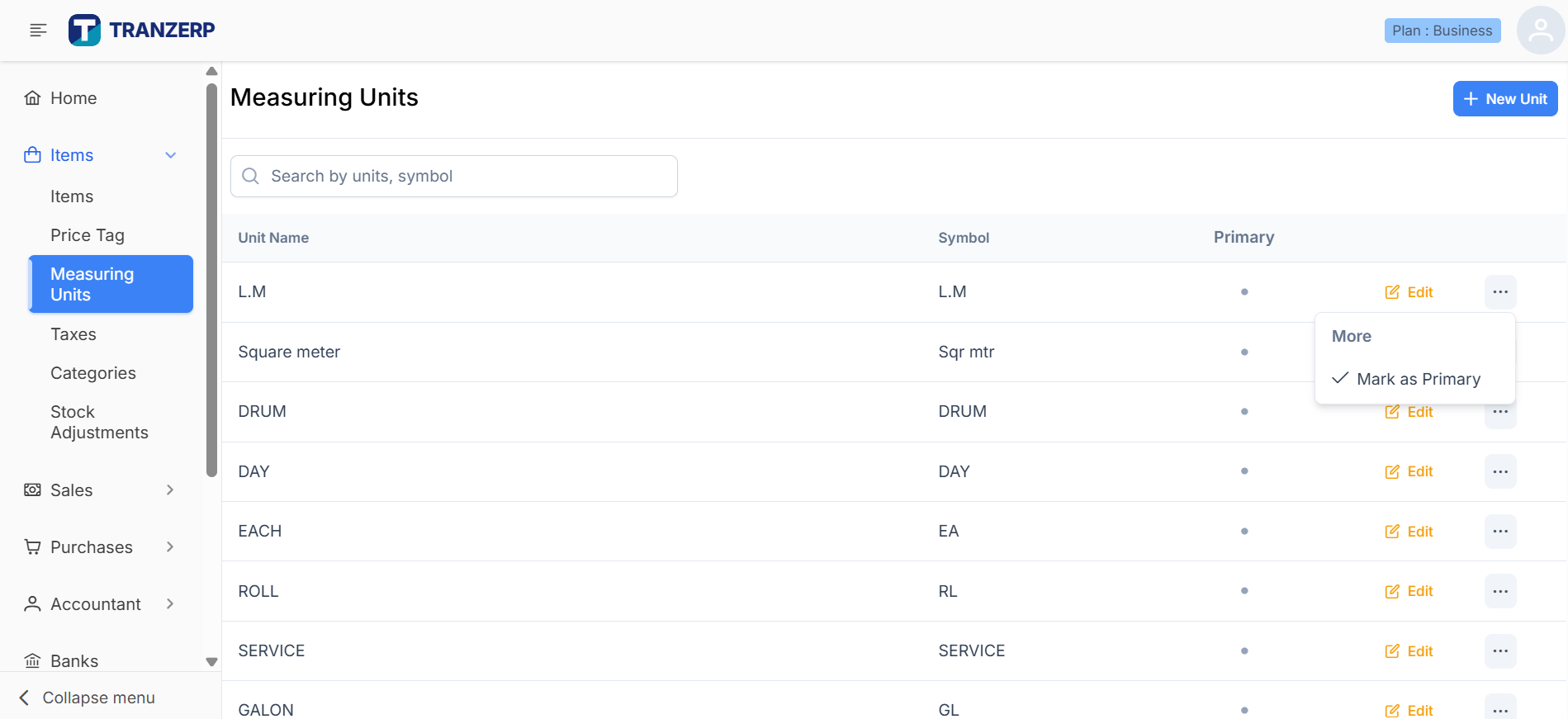
- In the TranzERP sidebar, expand Items and select Measuring Units.
- Search by unit name or symbol. For example, search for ROLL or RL.
- Compare Unit Name and Symbol to find the correct row. The Primary column shows which unit is marked as primary.
Create a measuring unit
Search for the unit first so you can reuse an existing record if it matches what you need.
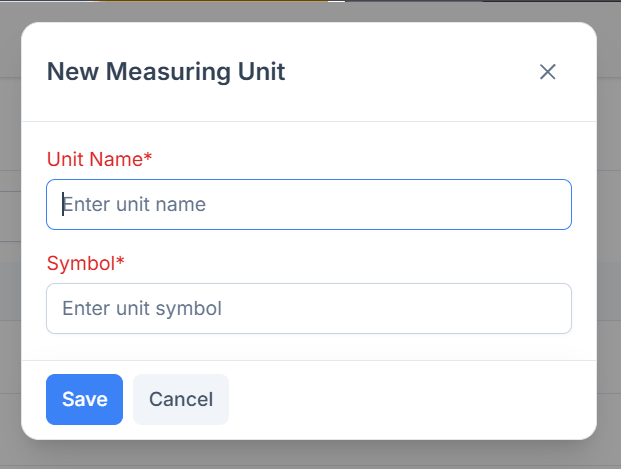
- Click New Unit to open New Measuring Unit.
- Enter the required Unit Name. Use a descriptive name such as Kilogram.
- Enter the required Symbol. Use a short, recognizable abbreviation such as kg.
- Click Save and check the new unit in the list. Click Cancel to close the form without saving.
Edit a measuring unit
- Find the unit by name or symbol and click Edit on its row.
- Update the name or symbol, then click Save.
- Check the updated values in the list.
Use a separate unit when the quantity means something different. For example, use separate records for metres and square metres.
Mark a unit as primary
Use this action to designate the main unit in the Measuring Units list.
- Find the unit you want to designate and open the three-dot menu on its row.
- Under More, select Mark as Primary.
- Check the Primary column to confirm the selection.
Use a unit on an item
Open an item and choose its Measuring Unit. For example, choose Pieces for individually counted helmets or Roll for tape sold by the roll. Review the Default Sales Unit and Default Purchase Unit so your quantities and prices use the intended units. See Choose a measuring unit in the Items guide.
Troubleshooting
The unit is hard to find.
Try a shorter part of the name or search by its symbol. Clear the search to see the full list.
The new unit cannot be saved.
Check that both Unit Name and Symbol are filled in, then review any message shown by the form.
Two units look similar.
Compare the full name and symbol before editing or assigning a unit.
How do I change the primary unit?
Open the intended unit’s three-dot menu and select Mark as Primary. Check the Primary column to confirm the choice.
I saved a unit but cannot find it on an item.
Check the saved name and symbol in Measuring Units. Return to the item’s Measuring Unit dropdown and search for that name.
The item quantity or price looks wrong with this unit.
Check the item’s Measuring Unit, Default Sales Unit and Default Purchase Unit. Confirm that the quantity and unit price correspond to the selected unit, such as a piece, box or metre.