
Before you start
Decide what extra information you want to capture and whether it belongs to an item, customer, vendor or invoice. Find the settings path for your module below, then follow the shared steps to create, save and manage your field.
Open custom field settings
Open Settings and use the path for the module where you want to capture the extra information. Each path below ends at the Custom Fields tab.
To add custom fields to items
Settings → Item Settings → Custom Fields
To add custom fields to customers
Settings → Customer Settings → Custom Fields
To add custom fields to vendors
Settings → Vendor Settings → Custom Fields
To add custom fields to invoices
Settings → Sales Settings → Invoice → Custom Fields
This example uses Customer Settings. The screenshots below create a customer field called Business Activity. Follow the same setup steps in the module you selected.
Open custom fields
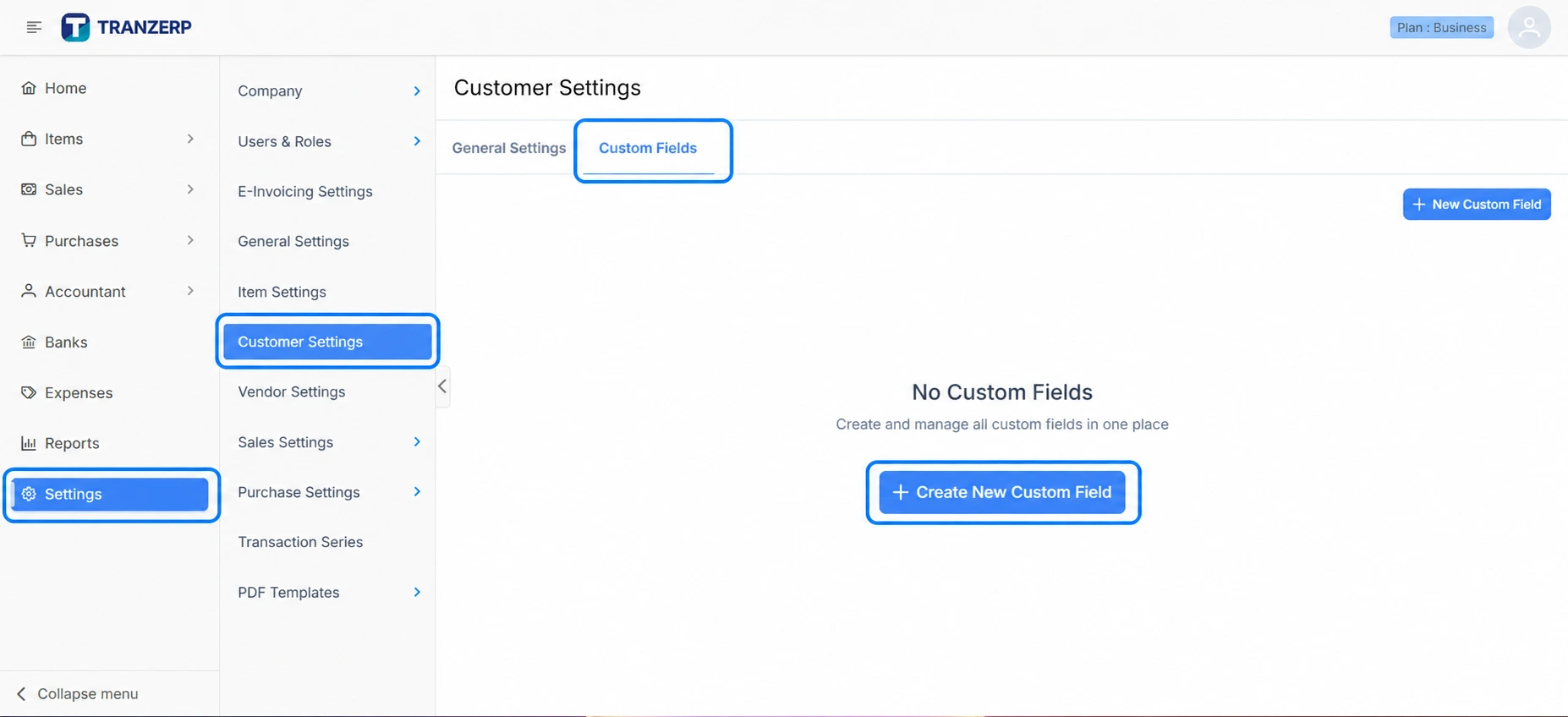
Open your module’s settings. Follow the settings path for the module where you need the field. The screenshot shows Customer Settings; follow the same setup steps in your module.
Start a new field. Open the Custom Fields tab and click + Create New Custom Field. If fields already exist, use + New Custom Field at the top right.
Create and save your field
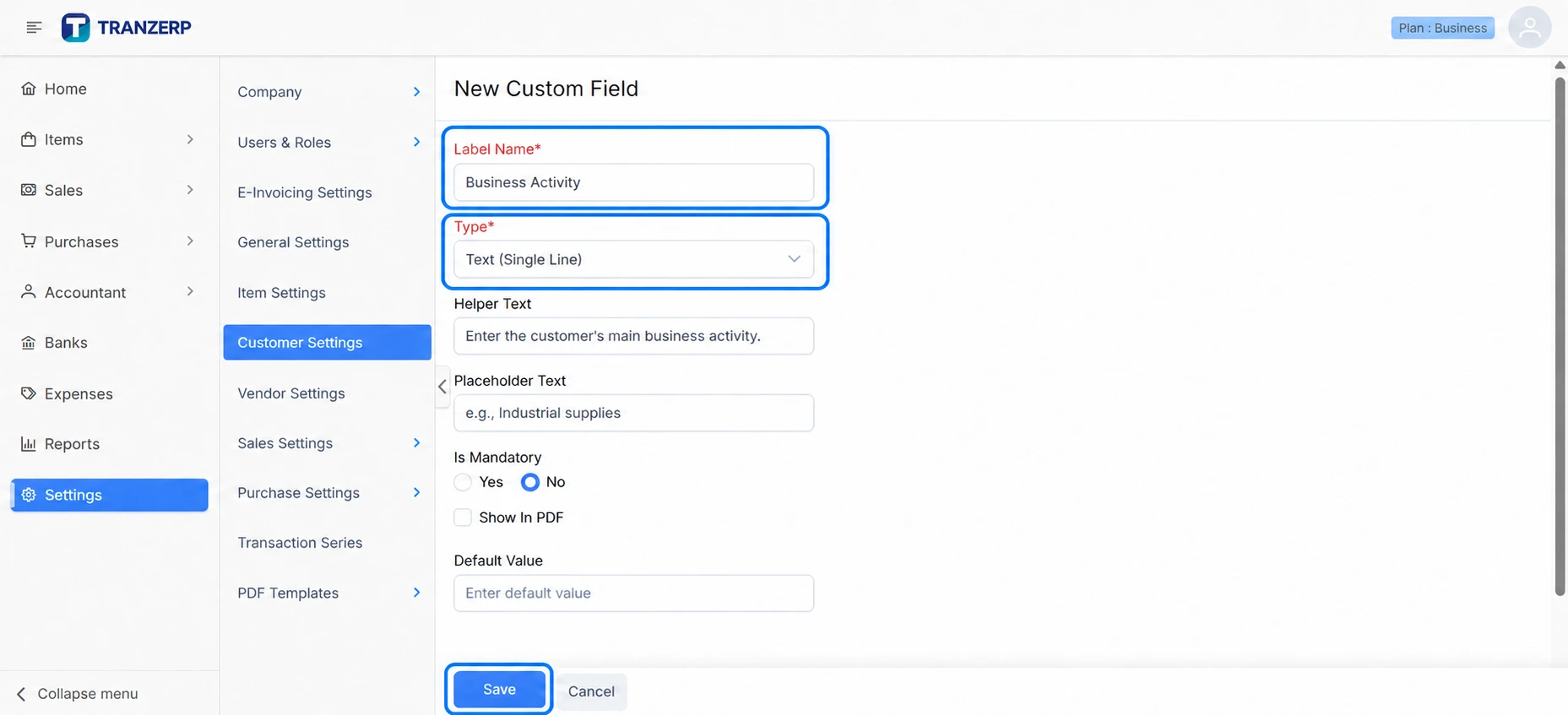
Name your field. Enter a clear Label Name, such as Business Activity. Choose Text (Single Line) as the Type for a short answer. The field types below help you choose a format for other details.
Set the options. Add Helper Text or Placeholder Text where needed. For this example, the placeholder is e.g., Industrial supplies. Choose whether the field is mandatory or should appear in PDF output, and add a Default Value if you want a value filled in initially.
Save your field. Review the settings and click Save. The new field appears in the Custom Fields list for the module you selected. This customer example is optional, has no default value and has Show In PDF unchecked.
Choose a field type
Choose a Type that matches the information you want to collect. TranzERP offers these six field types:
| Type | When to use it |
|---|---|
| Text (Single line) | Short answers, such as a customer’s business activity. |
| Text (Multi line) | Longer descriptions, notes or delivery instructions. |
| Number | Whole numbers, such as the number of branches. |
| Decimal | Values with decimal places, such as an item’s weight. |
| Select | A choice from a list, such as Retail or Wholesale. |
| Date | A date you want to record, such as a contract renewal date. |
Use your field in the selected module
After saving, open the relevant item, customer, vendor or invoice form and fill in the custom field for that record. Use the module where you created the field.
For example, enter Industrial supplies in a customer’s Business Activity field, or choose the salesperson for an invoice using the field you created in Invoice settings. Review the value before saving the record.
Manage your custom fields
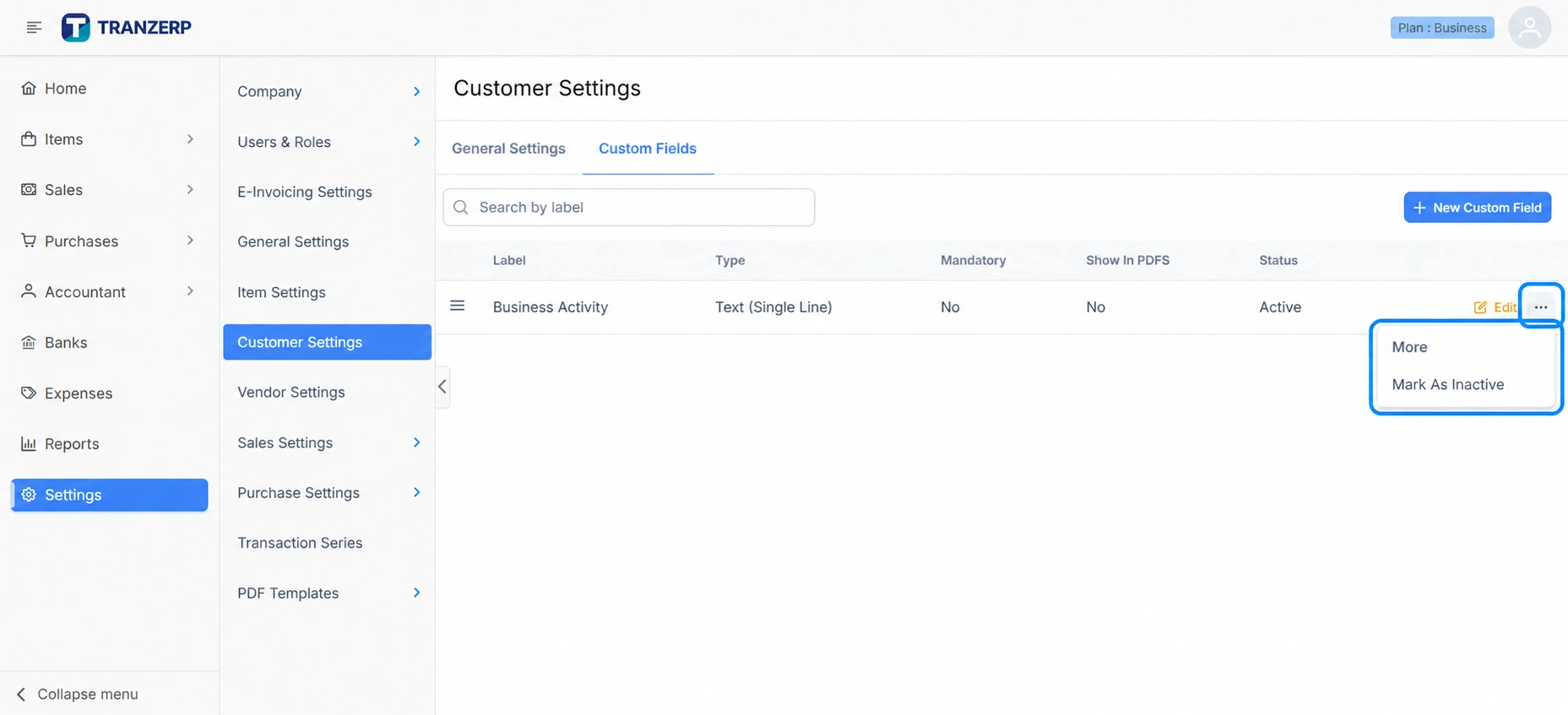
Review your fields. Return to Custom Fields in the same module’s settings. Use Search by label to find a field. The list shows its type, mandatory setting, PDF setting and status. Click Edit beside the field to review or update its settings.
Mark a field as inactive. When you no longer need a field, open its three-dot menu and choose Mark As Inactive.
FAQs
What if each record needs a different value?
Leave Default Value blank and enter the appropriate value for each record in the module you selected. For example, one customer’s Business Activity could be Industrial supplies and another’s Workshop maintenance services.
Can I make a detail compulsory in my selected module?
Yes. Choose Yes under Is Mandatory when setting up the custom field, then save it.
Can staff choose an answer instead of typing it?
Use the Select type for a field with a list of choices, such as customer categories. Use a text type when people need to enter their own answer.
Does placeholder text become the record’s saved value?
No. Placeholder Text provides an example in an empty field. Use Default Value when you want a value filled in initially, and review it for each record.
Need help choosing your custom fields?
Talk to our team about the extra details you want to capture in TranzERP.