
Before you start
Decide which prefix and starting number you want to use for each transaction type. A series combines these into a transaction number, such as SO-363 for a sales order. Follow the steps below to edit the existing series and see where it appears when creating a transaction.
Open transaction series
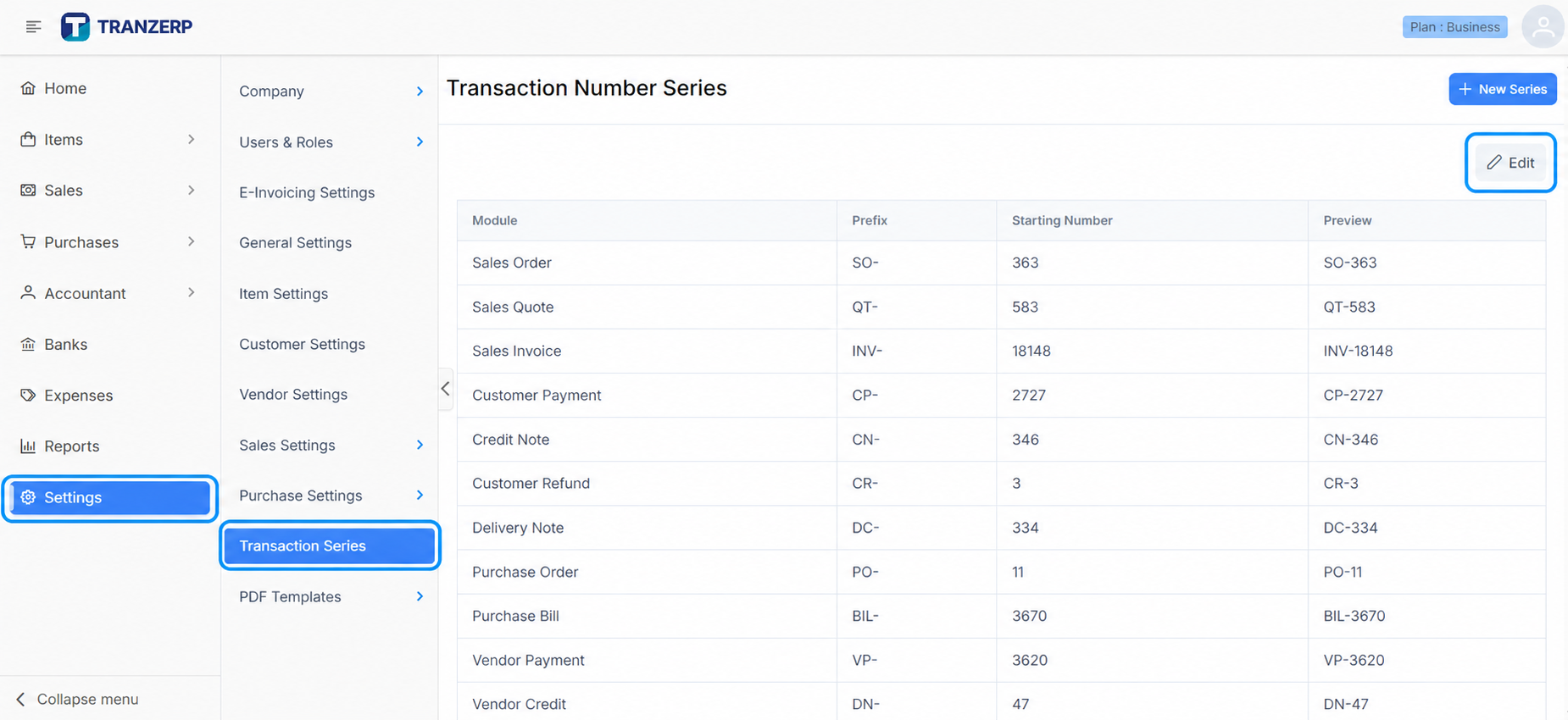
Open transaction series. In the sidebar, open Settings and click Transaction Series. The table shows the numbering set up for sales orders, quotes, invoices, purchase bills and other transactions.
Edit the series. Click Edit above the table to change its settings. This guide uses the existing Default Series and the Sales Order row as an example.
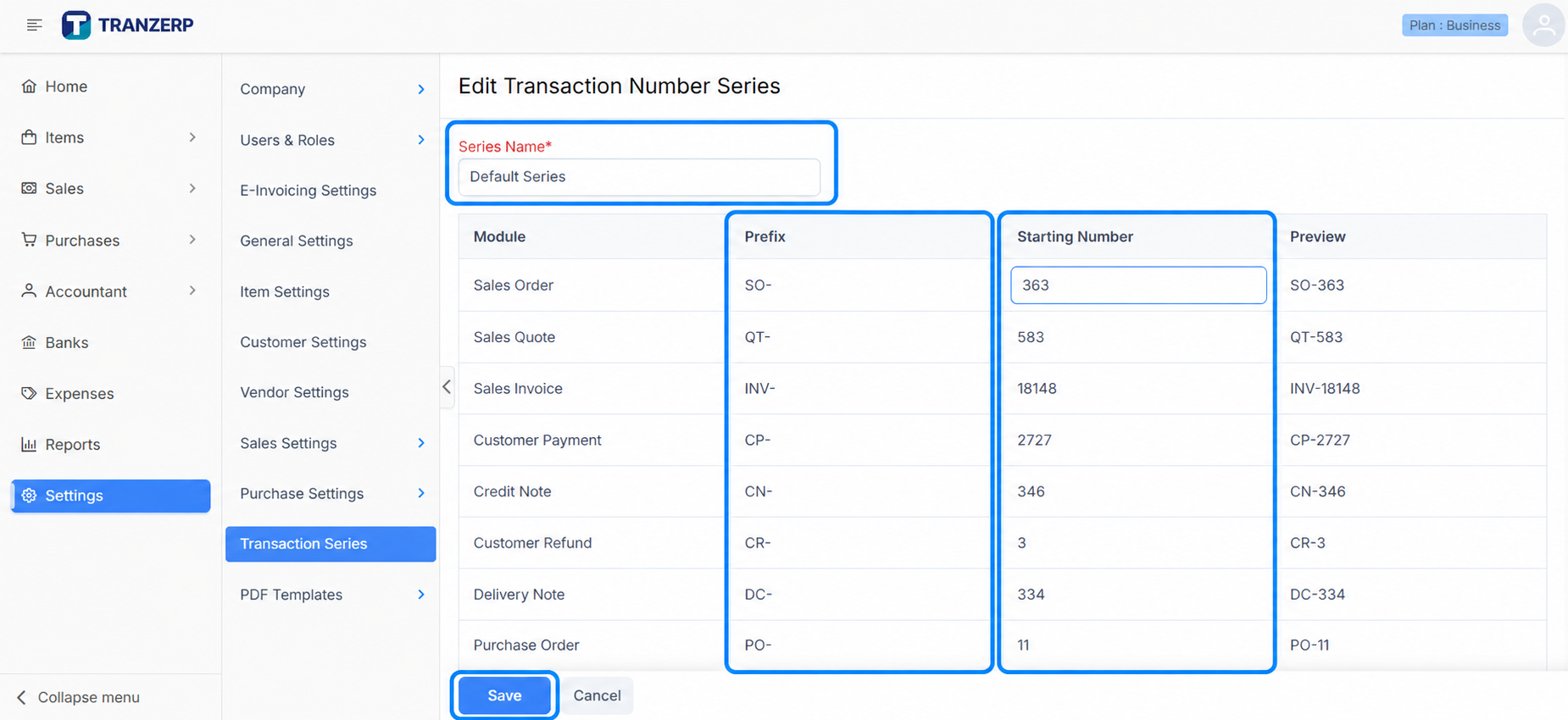
Edit and save your series
Check the series name. Series Name identifies this set of numbering settings. The example uses Default Series; edit the name if needed.
Find the module. Module values are already set by TranzERP and cannot be edited. Find the row for the transaction type you want to update, such as Sales Order.
Set the prefix and starting number. Edit Prefix and Starting Number in that row to suit your numbering format. For example, SO- with a starting number of 363 gives SO-363. You can set these values separately for each module.
Review and save. Check the Preview column to see the prefix and number together. When the format is correct, click Save.
Use the series in a sales order
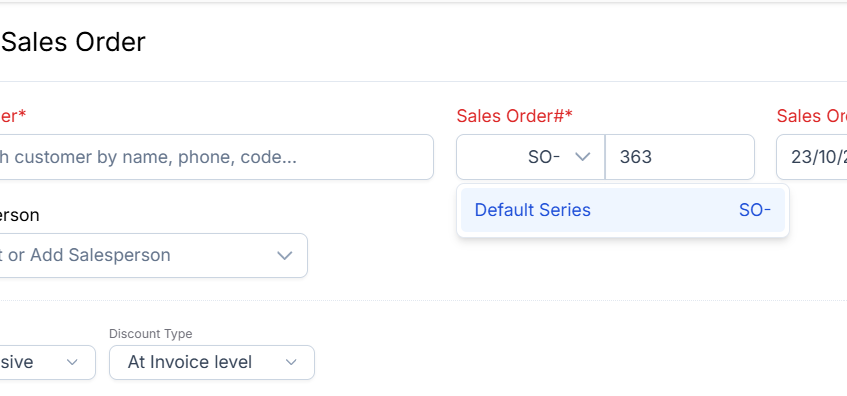
View the series on a transaction. Open a new sales order and look at Sales Order#. In this example, the prefix is SO- and the number is 363. Open the prefix dropdown to see Default Series and its SO- prefix.
Edit the number if needed. The number beside the prefix can also be edited while preparing this sales order. If you enter a number that already exists in the records, TranzERP does not reuse it and uses the next number from the default series instead.
Let numbering continue automatically. Complete and save the sales order. TranzERP saves transactions with unique numbers and increments numbering automatically for new records. For example, the automatic sequence continues from SO-363 to SO-364.
FAQs
Can I use different prefixes for sales orders and invoices?
Yes. Each module has its own Prefix and Starting Number. For example, use SO- for Sales Order and INV- for Sales Invoice, then check each preview before saving.
Can I continue numbering from my existing records?
Set Starting Number to the number you want to begin with for that module. For example, enter 363 with the prefix SO- to start at SO-363.
Do I need to type the next number for every transaction?
No. TranzERP increments transaction numbering automatically. The Sales Order example also lets you edit the number for an individual order. Existing numbers are not reused; TranzERP uses the next number from the default series if the number you enter already exists.
Need help setting up your numbering?
Talk to our team about the prefixes and number sequences you want to use in TranzERP.